If you deal with heavy project files, collaborate with remote teams, or juggle multiple cloud storage accounts daily, you are probably familiar with the constant struggle for disk space. The absolute best way to manage cloud storage in Windows is by using a dedicated desktop application like Air Live Drive, which allows you to map cloud storage as a local disk permanently.
This setup lets you access all your platforms, whether it’s Google Drive, OneDrive, or Dropbox, directly inside Windows File Explorer as if they were internal hard drives (C:, D:, etc.). The biggest advantage to this approach is that you can work with documents, images, and videos without mass-syncing them and clogging up your laptop’s storage.
What Does It Mean to Map a Cloud Drive?
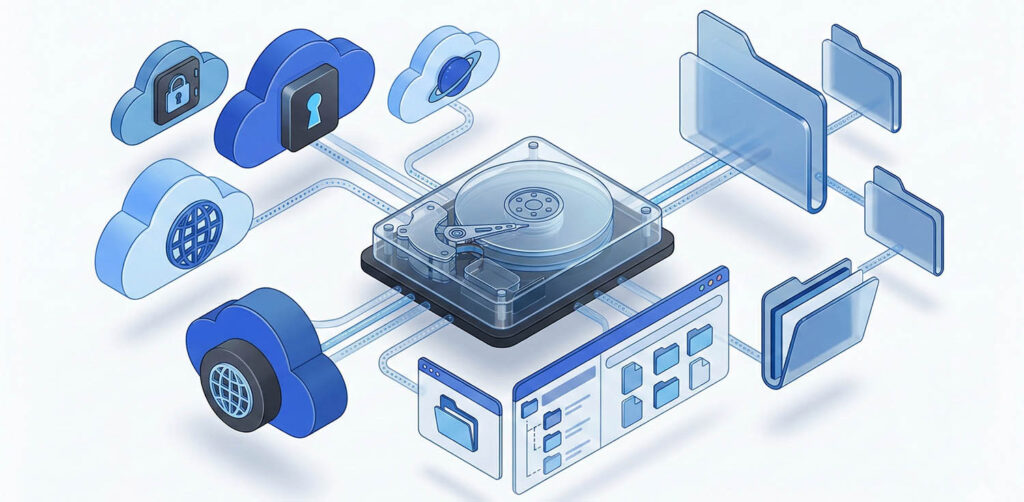
In plain terms, mounting or mapping a cloud drive means assigning a standard drive letter on your operating system to a remote storage service.
Instead of opening a web browser every single time you need a spreadsheet, or installing the official app that duplicates all your cloud content and eats up gigabytes of local storage, you configure your cloud so Windows recognizes it as a plugged-in device. The result is a frictionless experience: you interact with files living on the internet exactly as you would with a USB flash drive or an external hard drive you just plugged into your computer.
Cloud Syncing vs. Cloud Mounting: What’s the Difference?
This is usually the biggest point of confusion when organizing a digital workspace.
- Syncing: This process downloads an exact, permanent local copy of your cloud files straight to your hard drive. If you have 100 GB of assets in your Google Drive, running the official Google sync client means those exact 100 GB are permanently occupying physical space on your PC.
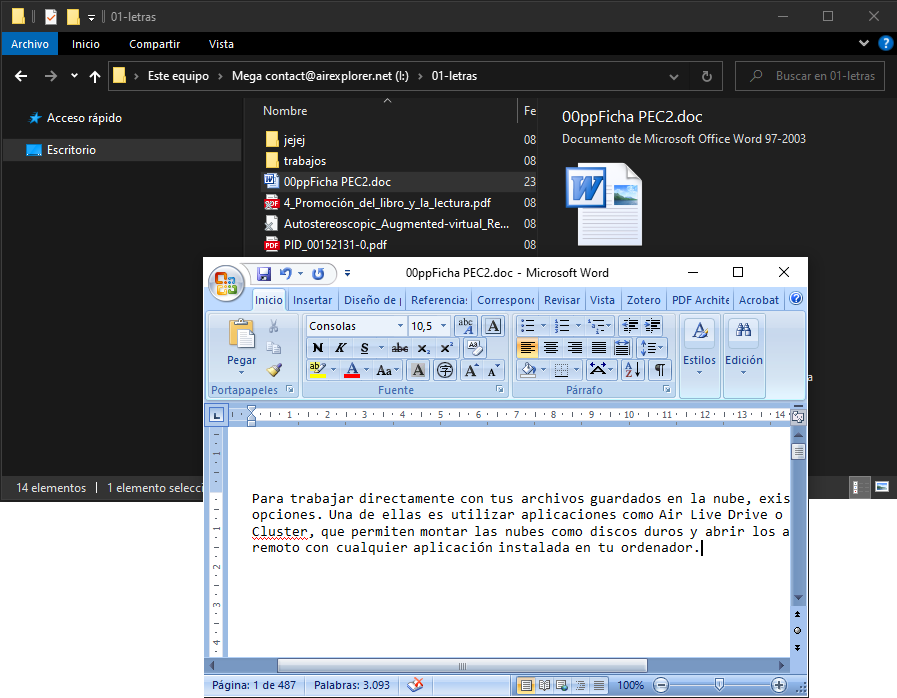
- Mounting: This does not require disruptive mass-downloads. The true file stays in the cloud. When you double-click a file in File Explorer, it opens temporarily in your computer’s memory using your standard software (like Microsoft Word, Adobe Photoshop, or Premiere). When you hit “Save”, your edits are pushed directly back to the internet. If you want to dive deeper, our guide on how to access cloud files without syncing explains the mechanics of this agile workflow.
Why Use Air Live Drive as Your Windows Cloud Mapper?
Air Live Drive is specifically engineered to optimize your workday and save your PC dozens of crucial gigabytes. Here is where it truly shines:
1. Work Online Without Wasting Local Space
Whether you are a creative professional pushing heavy assets like RAW photos, 4K video, and PSDs, or an office worker tired of filling your hard drive with endless PDFs, cloud mounting is the ultimate fix. You open, edit, and save files directly in the cloud. Nothing stays permanently on your disk.
2. Multi-Account Support
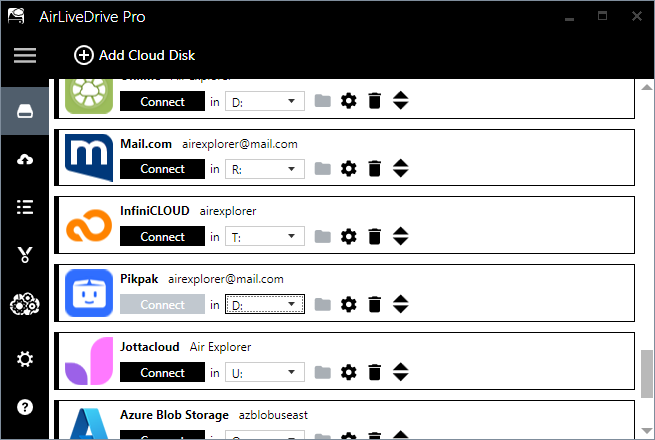
Do you constantly bounce between personal and corporate accounts? Air Live Drive eliminates this headache by letting you mount multiple cloud accounts as local drives all at the same time. No more logging in and out, and no more account conflicts.
3. More Than 40 Supported Providers
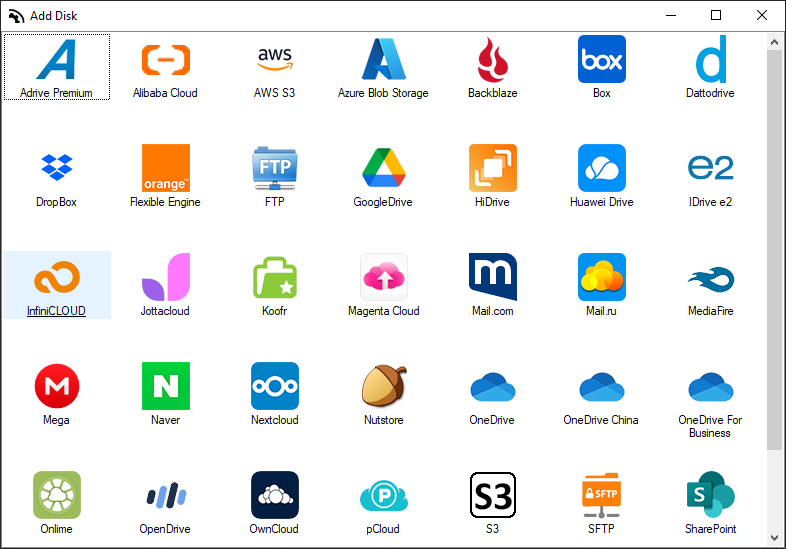
Beyond the big names like Google Drive, OneDrive, and MEGA, Air Live Drive flawlessly integrates platforms like Box, pCloud, Backblaze, and enterprise-grade SharePoint. It even supports secure remote enterprise connections (FTP, SFTP, WebDAV), embedding them into File Explorer with an instant, single-click setup.
How to Mount Google Drive or OneDrive in Under 3 Minutes
Transitioning your remote storage into an integrated local workflow is incredibly straightforward:
- Download and install the free Windows desktop app from the official Air Live Drive website.
- Add your account: Open the software, select your preferred cloud provider from the roster, and log in securely.
- Assign a drive letter: Pick any available logical letter on your PC (e.g., Z:, X:) to easily identify your storage.
- Click Connect: Immediately open File Explorer and start dragging, dropping, and managing your files just like you always have.
FAQ
Absolutely. With Air Live Drive, the software acts as an invisible bridge. You can open Word documents and design projects hosted on Google Drive using your local software. When you save, the updated file uploads in the background right back to your online provider, without freezing your computer or breaking your focus.
Built for stability and trusted by professionals, Air Live Drive stands out as the top RaiDrive alternative currently on the market. It offers a fully functional free plan that allows you to cleanly connect up to three simultaneous drives, and delivers far superior performance under heavy daily use compared to its competitors.
Air Live Drive was purpose-built by developers for active daily work—opening and editing files one by one directly from Windows. However, if your goal is to automate massive backups or transfer huge volumes of data server-to-server, we highly recommend using tools from our sister ecosystem like Air Explorer or Air Cluster, which are explicitly built for heavy-duty cloud-to-cloud transfers.
Bottom Line
The old habit of opening a web browser, downloading a file just to edit it, hunting it down in your local folders, and re-uploading the final version is a relic of the past that is actively killing your productivity. Likewise, running ten different official sync apps on your PC is a surefire way to burn through your internal storage.
By truly mounting your online platforms as if they were internal drives with Air Live Drive, you take massive control over your virtual environment. You’ll enjoy a remarkably clean Windows File Explorer, neatly consolidating dozens of scattered services under simple drive letters, and permanently ending those annoying “Low Disk Space” warnings. For any Windows user looking to scale their productivity, this is a must-have utility.
You can check more information about more features here:
-What is the Best Software to Map SFTP and WebDAV Servers as Hard Drives?
-Why context switching is killing your productivity: Managing cloud shares from Windows Explorer
-Top RaiDrive alternative: Air Live Drive
