
How to use ChatGPT and Codex with Dropbox, Google Drive and OneDrive folders
September 5, 2026

ChatGPT is no longer limited to answering questions or summarising files uploaded one by one. Its Windows desktop app can work with local projects: folders on your computer that provide context for a task and whose files can be read and edited.
It is worth clarifying the names first. The application you open from the Windows Start menu is called ChatGPT. Inside it, you can select Codex, the agent designed to work with local projects, folders and files. They are not two separate applications, and Codex is not ChatGPT’s old name: it is a way of working within the ChatGPT desktop app.
This creates an interesting option for people who keep their files in the cloud. With Air Live Drive, a folder from Dropbox, Google Drive, OneDrive, Box, pCloud or another compatible service can appear in Windows as a drive. If you add that folder to a local ChatGPT project, Codex can work with it as if it were a normal folder on your computer.
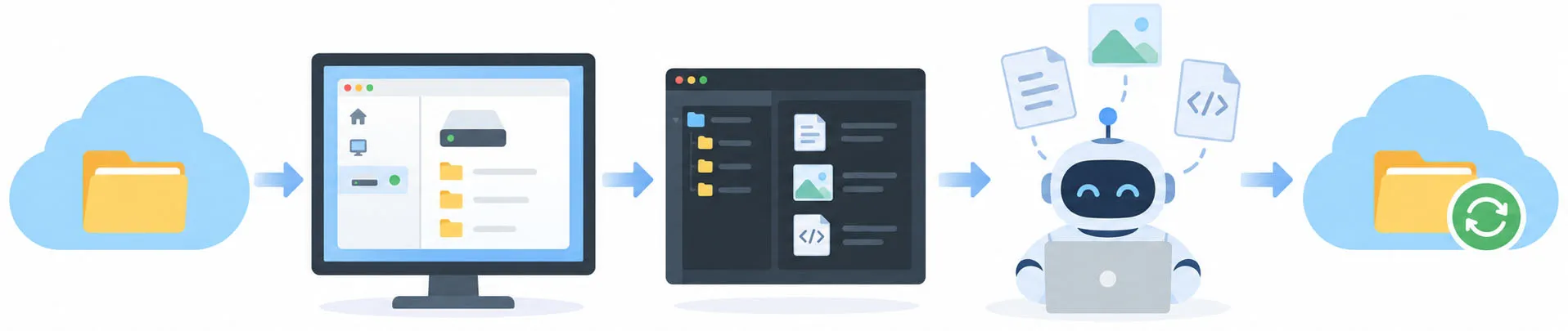
The important point is that ChatGPT is not connecting directly to Dropbox or Google Drive. Air Live Drive provides the bridge:
Cloud folder
     ↓
Virtual drive created by Air Live Drive
     ↓
Folder added to a local ChatGPT project
     ↓
Codex reads, creates or edits files
     ↓
Air Live Drive updates the files in the cloud
Use a cloud folder as a project source
Local ChatGPT projects can provide access to one or more folders on your computer. In Codex, those folders can be used as working context: checking documents, reviewing the structure of a website, finding files, creating new content or updating existing files.
With Air Live Drive, the folder does not need to be permanently stored on the local disk. It can be a folder on a virtual drive, such as an H: drive connected to Dropbox or a Z: drive connected to OneDrive.
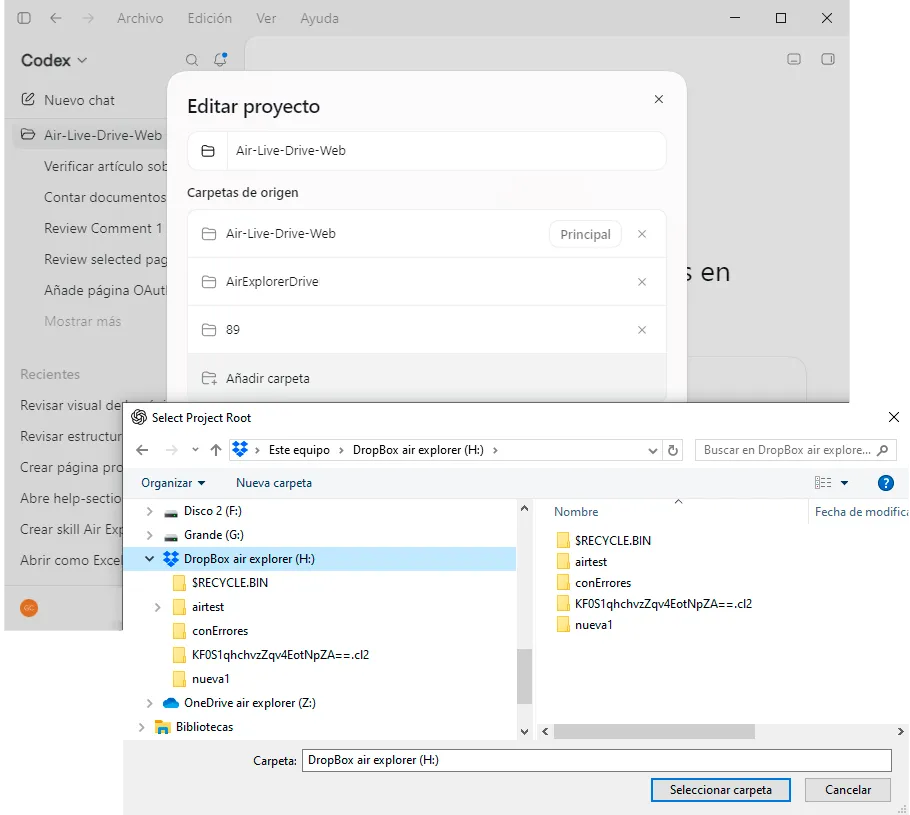
The workflow is simple:
- Connect your cloud account in Air Live Drive and mount it as a virtual drive.
- Open the ChatGPT desktop app in Windows.
- Select Codex and create or open a local project.
- Edit the project and add the specific folder from the Air Live Drive virtual drive.
- Ask Codex to complete a task using the files in that folder.
Choose only the folder needed for the task. There is no need to attach an entire Dropbox account or a complete OneDrive drive if you only need to work with a website content folder, for example.
OpenAI distinguishes between standard ChatGPT projects, which use uploaded files or connected sources, and local projects, which can access folders on your computer. Its documentation also explains that local environments are used through Codex in the ChatGPT desktop app. Read OpenAI’s documentation on ChatGPT projects.
What tasks make sense?
This workflow is particularly useful when the AI needs to work with a collection of files rather than a single document.
For example, a content team could add a Dropbox folder containing articles, images, drafts and product documentation. From ChatGPT, Codex could locate articles awaiting review, suggest improvements across several files, create a summary of the available documents or draft a new article in the right folder.
It can also be useful for a website project. If HTML, CSS, images and documentation are stored in a cloud folder, Codex can review the project structure, find a specific text string or update related files. In this case, Air Live Drive makes the cloud folder available in Windows without requiring a full local copy of the entire cloud account.
In a practical test using a Dropbox folder mounted with Air Live Drive, Codex was able to list files, create a text file and edit it inside the folder added to the project. This is a useful verification because it demonstrates the complete workflow: reading the folder, writing a file and seeing a later update to that content.
What should not be overstated
It would not be accurate to say that this turns every AI service into a universal editor for every cloud platform. The workflow depends on three elements: the cloud account must be properly connected in Air Live Drive, the folder must be added to the local project, and the user must approve the actions Codex performs.
It is also not necessarily the best workflow for every type of project. A small or medium-sized folder containing documents, web assets, images or text files is a good fit. Very large repositories, folders with thousands of small files, dependency directories or projects that need continuous file watching and frequent builds may work better with a conventional local development setup.
Codex can make changes to files, so it is sensible to review them before publishing, limit the project to the relevant folder and confirm that Air Live Drive has completed the upload. Cloud-provider version history is also a valuable recovery option.
A more practical way to bring AI to your files
Air Live Drive’s value is not that it promises AI will replace your cloud tools. Its value is that it makes a cloud folder available in Windows as a normal working folder.
That means ChatGPT and Codex can become part of a practical workflow: select a Dropbox, Google Drive or OneDrive folder, add it to a local project and work with the files your team already uses. When the result is ready, Air Live Drive helps keep those changes available in the cloud.
You can check more information about more features here:
-How to Save Hard Drive Space Using Cloud Storage
-Using Cloud Storage Directly with Claude Cowork and Claude Code via Air Live Drive
-How to Edit Cloud Files Directly in Photoshop, Word or Excel Without Downloading