
How to Edit Cloud Files Directly in Photoshop, Word or Excel Without Downloading
July 1, 2026
Working with cloud storage should feel simple. But in practice, editing a file stored in Google Drive, OneDrive, Dropbox, or another cloud service often turns into a slow routine: download the file, wait, open it, edit it, save it, and upload it again.
That workflow wastes time, creates duplicate files, and fills your hard drive with content you may only need for a few minutes.
The good news is that there is a better way. You can edit cloud files directly in desktop apps like Photoshop, Microsoft Word, or Excel without downloading them manually first. With the right tool, your cloud storage appears in Windows as a local drive, so you can open and save files from your favorite programs exactly as if they were stored on your PC.
In this article, you will learn how direct cloud editing works, why it matters, and how to do it easily with Air Live Drive.
What does it mean to edit cloud files directly?
Editing a cloud file directly means opening a file stored in your cloud account from a desktop application without first copying it manually to local storage.
Instead of this:
- Open your browser.
- Find the file in the cloud.
- Download it.
- Edit it in Word, Excel, Photoshop, or another app.
- Save it locally.
- Upload the new version again.
You work like this instead:
- Open the file from a cloud-mounted drive in Windows Explorer.
- Edit it in your desktop application.
- Save the changes normally.
The process feels natural because the cloud account behaves like a regular disk drive on your computer.
Why the traditional download-upload workflow is a problem
Manual downloading may seem manageable for one file, but it becomes frustrating when you work with cloud documents every day.
Common problems include:
- Wasted time switching between browser, local folders, and apps.
- Duplicate files scattered across desktop folders and downloads.
- Confusion about which version is the latest.
- Unnecessary use of local disk space.
- More risk of uploading the wrong file back to the cloud.
- Interrupted workflows for designers, marketers, finance teams, and remote workers.
For example, if you edit a Photoshop file stored in the cloud three or four times a day, repeated downloading and uploading quickly becomes a bottleneck.
Which files can you edit directly?
In general, you can directly open and save many common file types from cloud storage when the cloud is mounted as a local drive.
Typical examples include:
- Photoshop files such as PSD and PSB.
- Microsoft Word documents such as DOCX.
- Excel spreadsheets such as XLSX.
- PowerPoint presentations such as PPTX.
- PDF files.
- Images, videos, and other creative assets.
- Project, text, and data files used by desktop software.
This is especially useful for professionals who rely on full desktop apps rather than simplified web editors.
How Air Live Drive makes cloud editing easy
Air Live Drive is a Windows desktop application that mounts your cloud storage accounts as local disk drives. That means services like Google Drive, OneDrive, Dropbox, Box, MEGA, pCloud, and many others appear directly in Windows Explorer.
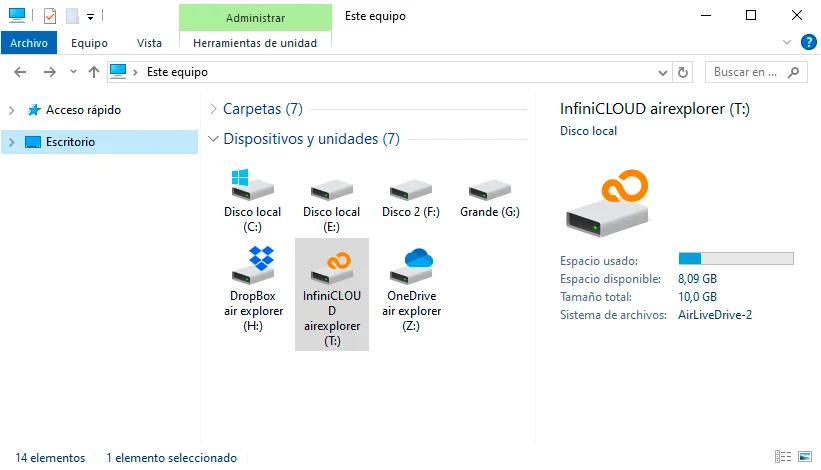
Once connected, you can browse folders, open files, and save changes from desktop programs without the usual sync-folder clutter or manual transfers.
The key benefit is simple: you work with cloud files as if they were on your computer, but without permanently storing everything on your local disk.
This approach is especially valuable if you:
- Work with large design files.
- Use multiple cloud accounts.
- Need access from professional desktop software.
- Want to avoid syncing massive folders just to edit a few files.
- Prefer a cleaner and faster workflow in Windows.
How to edit cloud files directly in Photoshop, Word, or Excel
The setup is straightforward.
- Donwload and install Air Live Drive on your Windows PC.
- Add your cloud storage account, such as Google Drive, OneDrive, Dropbox, or another supported provider.
- Connect and mount the account as a local drive.
- Open Windows Explorer and locate the file inside that mounted drive.
- Double-click the file to open it in Photoshop, Word, Excel, or your preferred desktop application.
- Edit the file as usual.
- Press Save.
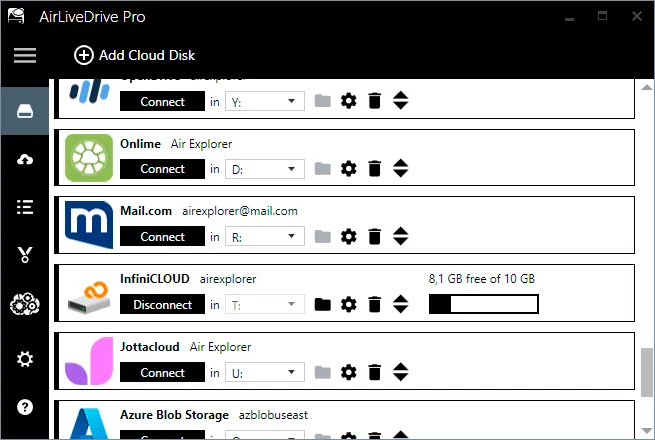
From the user’s perspective, it works like editing a file on any other drive. You do not need to manually download, move, or upload the file each time.
Benefits for different types of users
Direct cloud editing is useful in many real-world scenarios.
For designers
Creative professionals often work with large PSD, TIFF, AI, or image files. Downloading each version manually slows down revision cycles. Mounting cloud storage as a drive lets designers open assets faster and keep projects organized in the cloud.
For office teams
Word, Excel, and PowerPoint files are often shared across departments. Editing them directly from cloud storage reduces duplicate versions and makes collaboration more efficient.
For remote workers
When files live in the cloud, remote teams need frictionless access. Opening files directly from a mounted cloud drive helps users stay productive without maintaining large sync folders on limited devices.
For users with small SSDs
Many laptops do not have much free storage. Air Live Drive helps users access cloud content without consuming valuable local disk space.

FAQ
Can I edit a cloud file without downloading it first?
Yes. If your cloud storage is mounted as a local drive with a tool like Air Live Drive, you can open and save files directly from desktop applications.
Can I use Photoshop with files stored in the cloud?
Yes. You can open supported files such as PSDs from your mounted cloud drive and save changes directly from Photoshop.
Can I edit Word and Excel files directly from cloud storage?
Yes. Word and Excel can open files from a mounted cloud drive just like files stored on a local disk.
Do I need to sync the whole folder to my computer?
No. That is one of the main advantages. You can access and work with cloud files without syncing entire folders and without duplicating all content locally.
What is the easiest way to mount cloud storage as a drive in Windows?
Air Live Drive is one of the easiest ways to do it. It connects supported cloud services and mounts them as disk drives in Windows Explorer.
A smarter way to work with cloud files
If you regularly edit files stored in the cloud, the old download-edit-upload process is no longer the most efficient option. Mounting your cloud storage as a local drive gives you a more direct, cleaner, and more professional workflow.
With Air Live Drive, you can open cloud files in Photoshop, Word, Excel, and other desktop applications as if they were stored on your PC. That means less waiting, fewer duplicates, and better use of your disk space.
If your goal is to work faster and make cloud storage feel truly integrated with Windows, direct editing is the workflow upgrade worth making.
You can check more information about more features here:
-How to Access Cloud Files Without Downloading Them to Your PC
-Cache Management Guide: How to Optimize Your Local Storage
-Run Out of Disk Space? How to Use Cloud Storage as Extra Local Storage