
Using Cloud Storage Directly with Claude Cowork and Claude Code via Air Live Drive
July 20, 2026
AI coding assistants and agentic tools like Claude Cowork and Claude Code have changed how users and teams work, but they share a common limitation: they operate on local files. If your project lives in Google Drive, Dropbox, OneDrive, or any other cloud service, you first need to download everything locally before Claude can touch it. Air Live Drive removes that barrier entirely.
The Problem: AI Tools Need Local Files, But Your Data Lives in the Cloud
Claude Code and Claude Cowork are designed to read, analyze, and modify files on your file system. That’s their core strength, they interact with actual folders and documents just like a human developer would. The issue arises when your files aren’t stored locally at all.
Most teams today spread their data across multiple cloud platforms:
- Source code repositories backed up on Google Drive or OneDrive.
- Documentation and specs stored in Dropbox or shared team drives.
- Datasets and assets hosted on S3-compatible storage or other cloud providers.
- Client deliverables scattered across several different cloud accounts.
To let Claude work with any of this, the traditional approach means syncing entire folders to your machine first. That creates duplicate files, consumes disk space, introduces sync delays, and forces you to remember to push changes back afterward. For large codebases or media-heavy projects, this workflow quickly becomes impractical.

The Solution: Mounted Cloud Drives Claude Can Access Natively
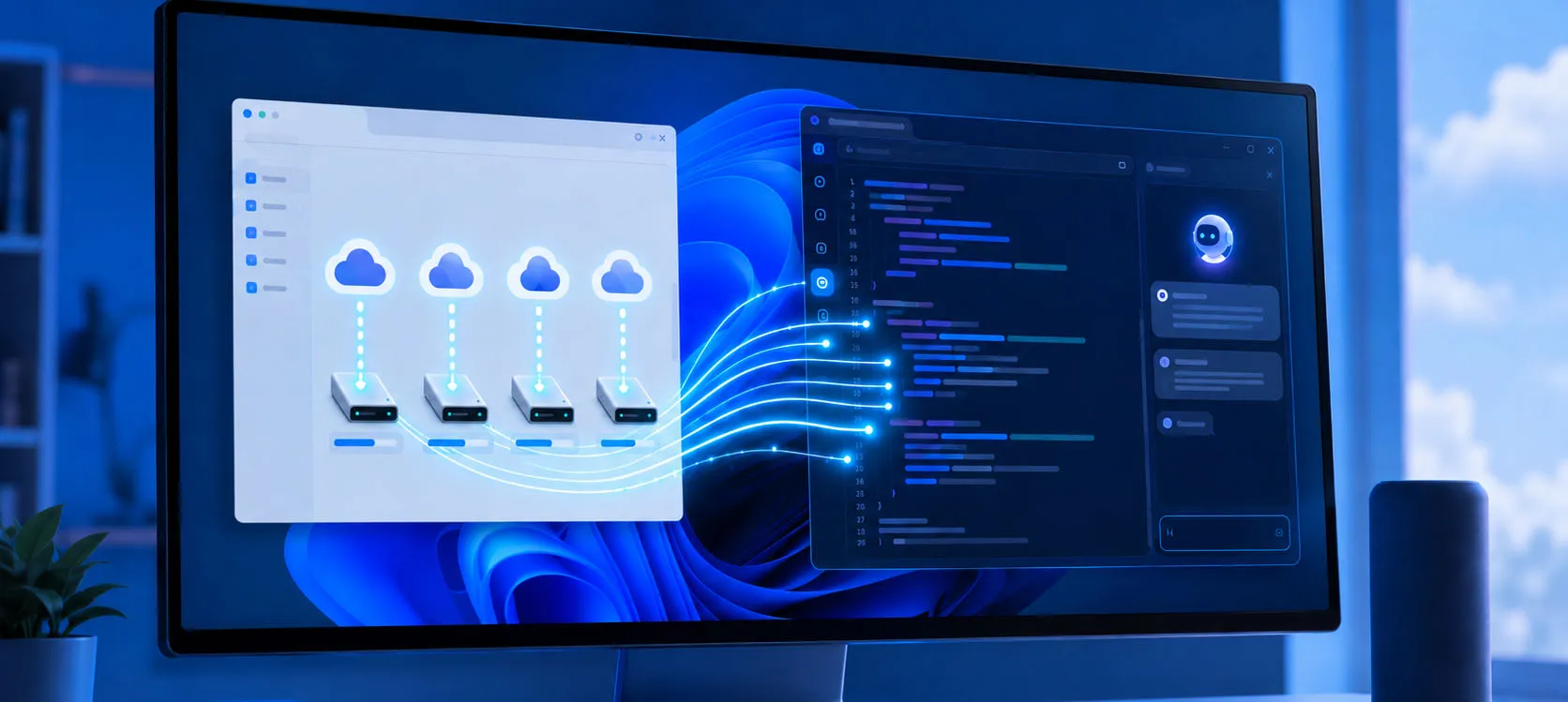
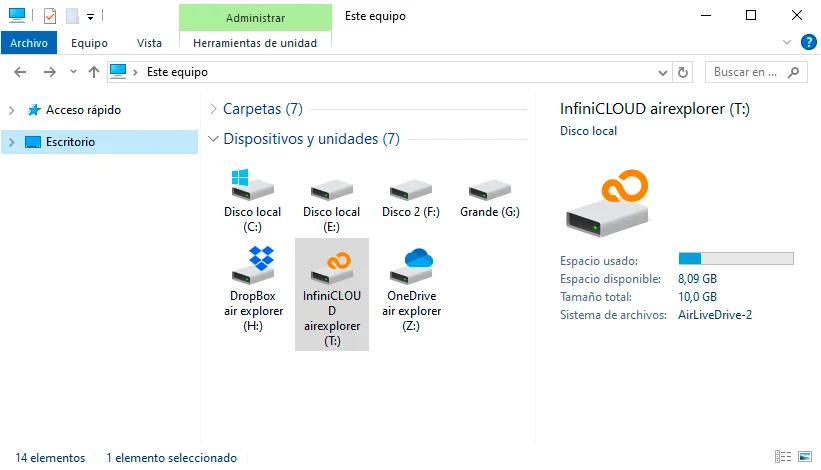
Air Live Drive solves this by mounting your cloud accounts as regular local drives in Windows, complete with their own drive letters, exactly like a hard disk or USB drive. Because Claude Code and Claude Cowork interact with the standard Windows file system, any drive mounted through Air Live Drive becomes instantly visible and usable to them, with zero extra configuration on Claude’s side.
This means:
- Claude can open, read, and edit files stored in Google Drive, Dropbox, OneDrive, iCloud, or any other supported cloud service as if they were on your local SSD.
- No syncing or downloading is required beforehand. Files stream on demand only when accessed.
- Changes Claude makes save directly back to the cloud, with no manual upload step.
- You can work across multiple cloud accounts simultaneously, each mounted as its own drive, and point Claude to whichever one a task requires.
- Your local disk space stays free, even when working with massive cloud-hosted codebases or datasets.
In short, Air Live Drive acts as the bridge between your cloud storage and Claude’s local-file-based workflow, letting the AI treat cloud content exactly like it would treat any file on your machine.
What This Solves in Practice
This integration removes several everyday friction points for developers and teams using AI agents:
- No more manual file transfers. You don’t need to download a project from the cloud, let Claude work on it, then re-upload the results.
- Real-time collaboration across devices. If a teammate updates a file in the cloud, Claude sees the latest version immediately, since it’s reading directly from the source.
- Storage efficiency for large projects. Massive repositories, datasets, or media libraries stay in the cloud, avoiding the need for a full local mirror.
- Simplified multi-cloud workflows. Teams using different providers for different purposes (Google Drive for docs, Dropbox for design files, OneDrive for internal specs) can let Claude access all of them without juggling separate sync clients.
- Faster onboarding for new machines. Set up Air Live Drive on a new PC, mount the same cloud accounts, and Claude has immediate access to the exact same project structure, no re-syncing required.
How to Use It: Step-by-Step
Getting Claude to work with your cloud files through Air Live Drive takes just a few steps:
- Install Air Live Drive on your Windows machine if you haven’t already.
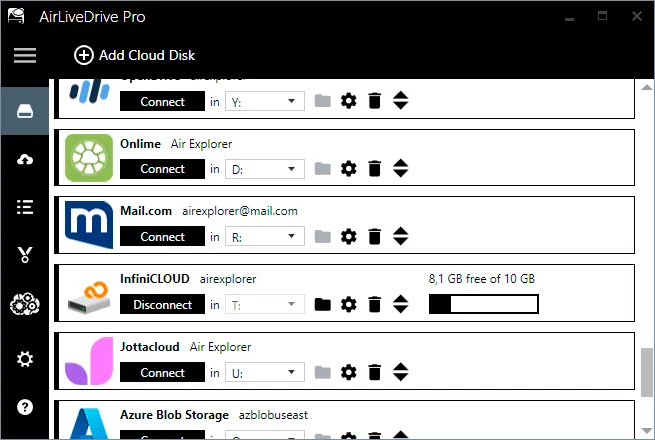
- Add your cloud accounts (Google Drive, Dropbox, OneDrive, iCloud, or others) through the Air Live Drive interface. Each one mounts as a separate drive letter.
- Locate the mounted drive in File Explorer, it will appear alongside your other local disks (e.g., G:G:G: for Google Drive, D:D:D: for Dropbox).
- Open Claude Code or Claude Cowork and point it to a project folder within that mounted drive, exactly as you would with any local directory.
- Let Claude work as usual. It reads and writes files through the mounted path, and Air Live Drive handles the streaming to and from the cloud in the background.
- Verify changes sync back by checking the file in your cloud provider’s web interface. Since Air Live Drive writes directly to the cloud, updates appear almost immediately.
No special plugins or configuration are needed on Claude’s end since it simply sees a normal Windows path.
Why This Matters
This combination essentially turns your entire multi-cloud storage setup into an extension of Claude’s working environment. Instead of treating the cloud as a separate destination you sync with, it becomes just another place Claude can read from and write to naturally.
For anyone or any team working with projects and information spread across multiple cloud providers, this means less time managing files manually and more time actually leveraging AI assistance, exactly the kind of seamless workflow Air Live Drive was designed to enable.
You can check more information about more features here:
-How to Edit Cloud Files Directly in Photoshop, Word or Excel Without Downloading
-How to Access Cloud Files Without Downloading Them to Your PC
-Cache Management Guide: How to Optimize Your Local Storage