
If your PC warns you about a “disk almost full” every few weeks, you’re not alone. Video files, photos, work projects, and backups grow faster than any SSD. The solution isn’t deleting everything or buying a new drive: you can save hard drive space using the cloud storage you already have, as long as you know what to move and how to access it without downloading it again. Here’s a practical, step-by-step strategy.
Step 1: Identify which files belong in the cloud
Not everything deserves the same destination. These are the biggest space consumers and how much you can free up by moving them:
- Videos and recordings: a single 4K clip can take up several GB. A library of family videos or old projects can easily free 50–200 GB.
- Photos and RAW files: years of photography collections usually account for 20–100 GB.
- Backups and system images: exports and old project versions are perfect candidates: you need them available, but not on your disk.
- Installers and downloads: that
.isoor.zipyou downloaded months ago probably won’t be opened anytime soon. - Finished projects: work already delivered that you must keep for archiving, but don’t need daily.
The documents you use every day, on the other hand, can stay local without a problem: they usually take up very little space.
Step 2: Avoid the sync trap
This is where most people fail. The official Google Drive, OneDrive, or Dropbox clients sync: they create a local copy of every file on your disk. If you upload 100 GB to the cloud with sync enabled, those 100 GB still occupy space on your PC. You haven’t freed anything: you’ve duplicated it.
To actually save space, you need to access the cloud without downloading it: files live on the server and only travel to your computer when you open them.
Step 3: Mount your cloud as a local drive with Air Live Drive
The easiest way to do this is to mount your cloud storage as if it were just another hard drive on your PC. Air Live Drive turns Google Drive, OneDrive, Dropbox, Mega, Box, and even FTP, SFTP, and WebDAV servers into local drives with their own letter (for example, Z:).
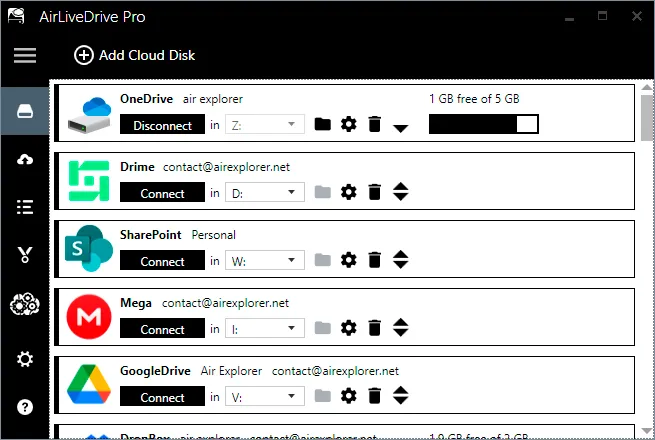
Setup takes less than 3 minutes:
- Download and install Air Live Drive from the official website.
- Add your cloud account and sign in securely.
- Assign a drive letter and click Connect.
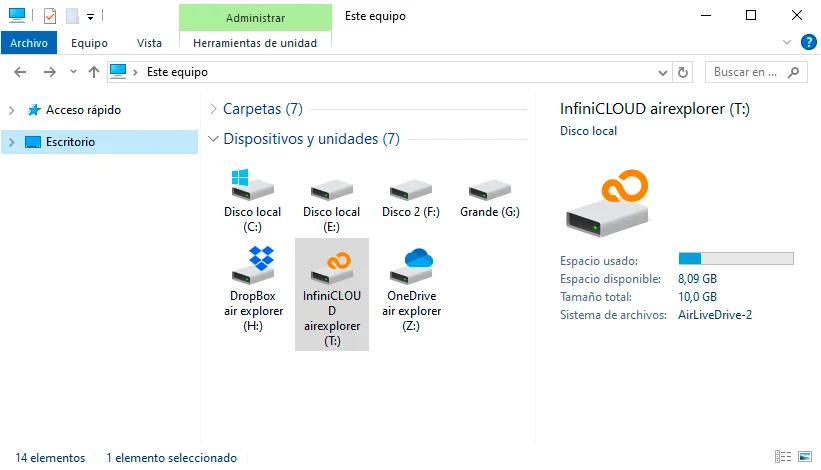
From then on, your cloud appears in File Explorer like any other disk. You can drag the heavy files you identified in Step 1, delete them from your local drive, and still open and edit them directly from the cloud whenever you need them. Nothing is stored permanently on your PC: space is only used temporarily while you’re working with a file.
Step 4: An advanced case, working with AI without filling your disk
Space savings with mounted drives also transform AI workflows. Tools like Claude Code and Claude Cowork operate on local files, which would normally force you to download entire repositories, massive datasets, or project folders to your disk before using them.
With Air Live Drive, that step disappears: Claude accesses files directly on the mounted drive, reads and edits them as if they were on your SSD, and changes are saved back to the cloud instantly. Your local disk stays free even when working with multi-gigabyte projects. You can see the full workflow in our article on using cloud storage directly with Claude Cowork and Claude Code.
Step 5: Keep your disk clean with cache management
When you open files from a mounted cloud, Air Live Drive uses a temporary cache to speed up access. To keep that cache from filling your disk again:
- Limit the cache size in the program options, assigning only the space you want to dedicate.
- Use the “Clear cache” button to empty it manually whenever you need urgent space.
- Choose the right cache profile depending on whether you have a stable connection or need maximum performance.
You’ll find all the details in our cache management guide.
Conclusion
Saving hard drive space with the cloud isn’t about uploading files and crossing your fingers: it’s a strategy. Identify what you move, avoid the sync that duplicates space, mount your cloud as a local drive with Air Live Drive, and keep the cache under control. That way, even a 256 GB SSD feels infinite, and your cloud storage goes from being a remote junk drawer to a real extension of your PC.
You can check more information about more features here:
-How to Mount Cloud Storage as a Local Drive in Windows
-Using Cloud Storage Directly with Claude Cowork and Claude Code via Air Live Drive
-How to Edit Cloud Files Directly in Photoshop, Word or Excel Without Downloading
-How to Access Cloud Files Without Downloading Them to Your PC