
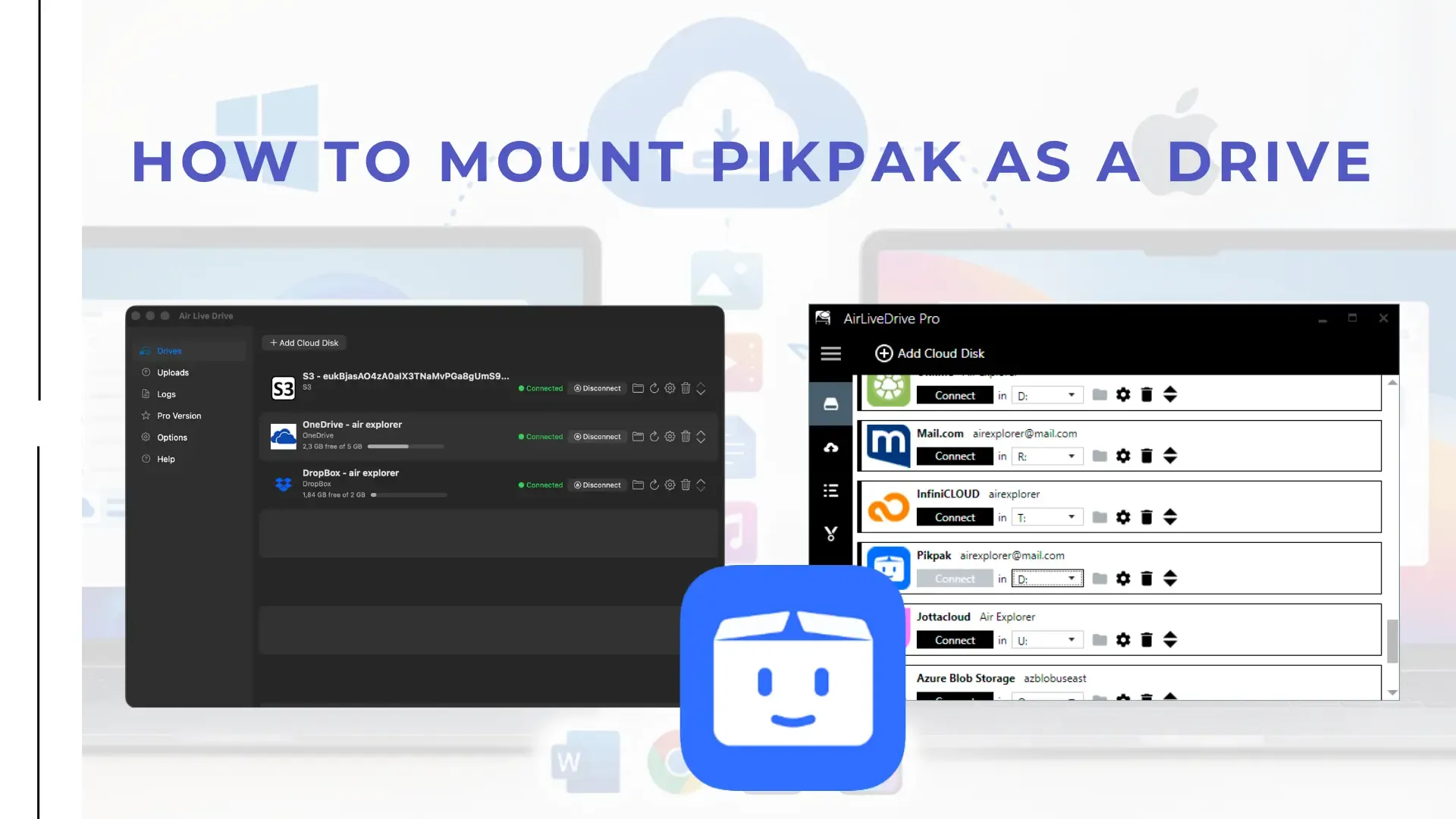
Want to use PikPak like any other disk on your computer? With Air Live Drive you can mount PikPak as a drive on Windows and Mac and work with your cloud files from File Explorer or Finder: open them with your usual applications, copy them to other clouds and save changes, without syncing your whole account or filling up your hard disk.
Why PikPak is worth having as a drive
PikPak is a cloud storage service built around large files and media. Its standout feature is saving content from a link straight into your account, so the download happens in the cloud rather than on your computer. It also offers a free plan, apps for every device and built-in video playback.
All of that works well in the browser or on a phone. On a computer, though, you usually want to treat those files like any others: open them in your own software, organize them in folders or move them to another service. That is where mounting PikPak as a drive makes the difference.
Air Live Drive: PikPak on Windows and Mac
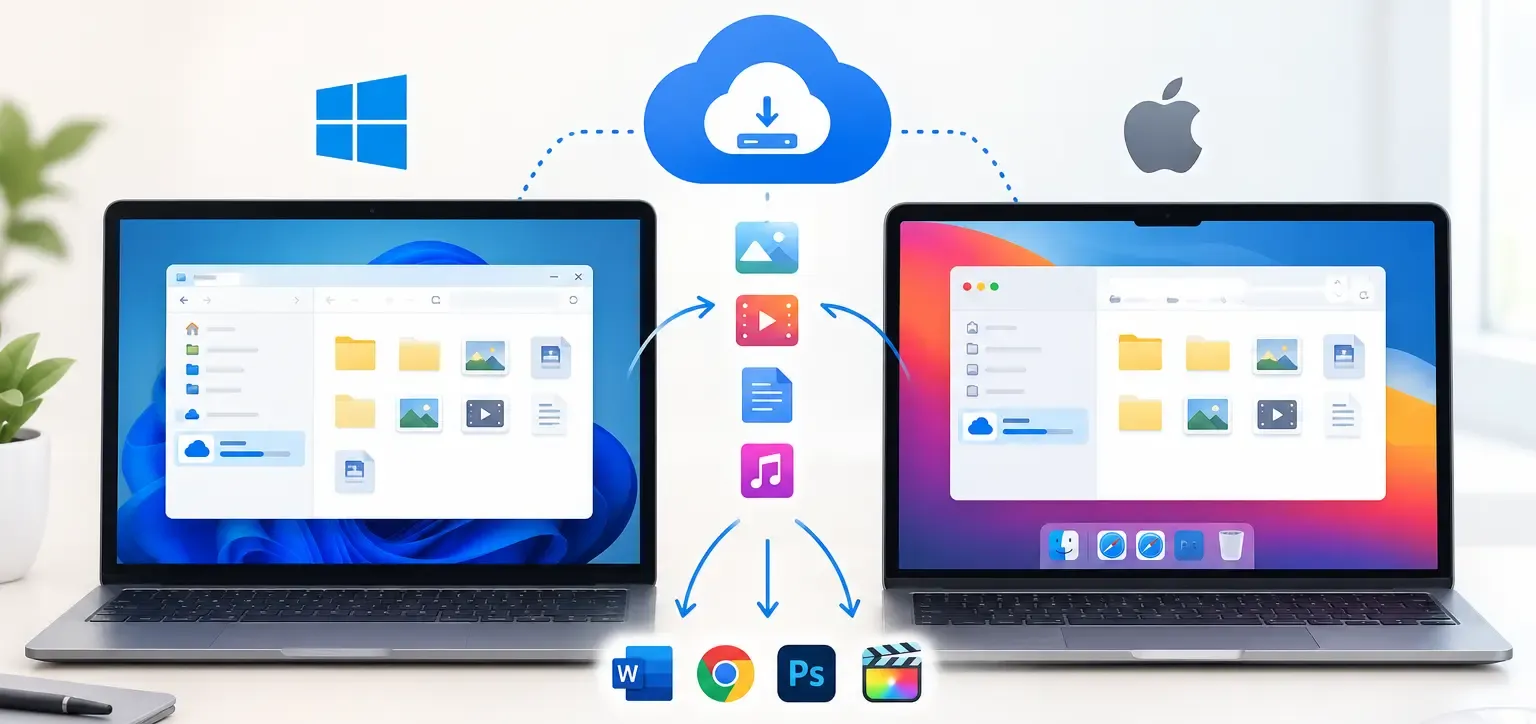
Air Live Drive is available for Windows and Mac, so you can work with PikPak on either system with the same approach:
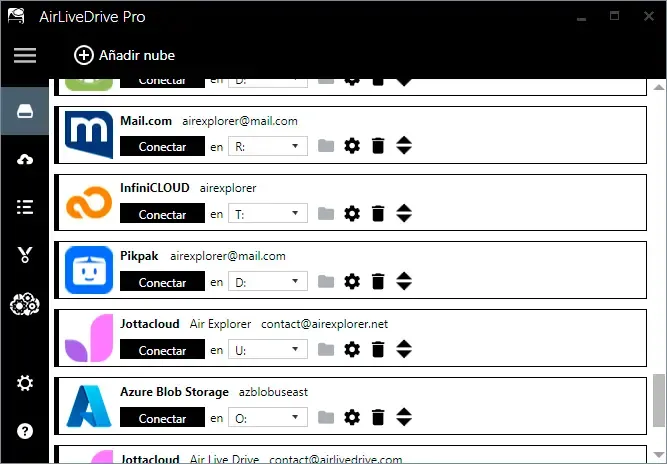
- On Windows, PikPak appears in This PC with its own drive letter, next to your local disks.
- On Mac, PikPak appears in Finder as another location you can browse, open and save to. The Mac version requires macOS 13 or later.
In both cases your PikPak account is not copied to your computer. Folders are listed straight from the cloud and files are retrieved when you open them, so even a very large library takes up almost no local space.
Mount PikPak as a drive: video tutorial
In this video you will see how to add your PikPak account to Air Live Drive and connect it as a drive in just a few clicks. Once it is mounted, the video shows PikPak working alongside other clouds: copying files from PikPak to OneDrive, opening documents straight from the cloud and sending files from the PC to PikPak and Dropbox at the same time.
Benefits of mounting PikPak with Air Live Drive
Work with your own applications
Open a PikPak video in your preferred player, a document in Word or LibreOffice, or an image in your editor, directly from the mounted drive. When you save, the changes go back to PikPak. Any application with an Open or Save dialog can reach your PikPak files.
Save local disk space
There is no full sync, so you do not need room on your disk for everything stored in PikPak. This is especially useful on laptops with small SSDs and for people who keep large media collections in the cloud.
All your clouds in one place
PikPak can be mounted alongside Google Drive, OneDrive, Dropbox, MEGA and many other services. Each one becomes its own drive, so moving files between PikPak and another cloud is as easy as copying between two folders, with no downloading and re-uploading through a browser.
Familiar file management
Drag and drop, copy, paste, rename and create folders just as you would on a local disk. Organizing hundreds of files with File Explorer or Finder, keyboard shortcuts and multiple selection is much faster than doing it one click at a time on a website.
Several accounts, one workflow
If you use more than one PikPak account, or combine PikPak with work and personal storage, each account gets its own drive. Air Live Drive Pro removes the limits of the free version for those who manage many accounts.
Who benefits most from PikPak as a drive
- Content creators who collect video and audio in PikPak and edit it with desktop software.
- Teams and freelancers who receive material in PikPak and deliver it through OneDrive, Google Drive or Dropbox.
- Laptop users who need extra storage without carrying an external disk.
- Mac and Windows users who switch between both systems and want the same access to PikPak on each.
Tips for working with PikPak as a drive
Since Air Live Drive works directly with the cloud, opening and saving files depends on your internet connection. Large uploads continue in the background, so keep the application open until they finish. Changes made from the PikPak website or mobile app appear when you refresh the drive. You will find every configuration option in the Air Live Drive help guide.
Start using PikPak as a drive today
Mounting PikPak as a drive turns your cloud library into part of your computer, whether you work on Windows or Mac. Download Air Live Drive, add your PikPak account and start working with your files from File Explorer or Finder.
Related reading: - Map your PikPak cloud storage account on Windows for free - Air Live Drive for Mac: cloud storage in Finder