
Run Out of Disk Space? How to Use Cloud Storage as Extra Local Storage
April 14, 2026
You’re in the middle of an important project and your computer throws that dreaded message: “Your disk is almost full.” Sound familiar? Whether you’re a designer working with heavy files, a professional managing large datasets, or just someone whose laptop SSD fills up faster than expected, running out of disk space is one of the most frustrating productivity killers of modern work.
The good news: you don’t need to buy a new hard drive or delete years of memories. Your cloud storage (Google Drive, OneDrive, Dropbox, or any other service) can act as real, usable extra storage directly from your computer. And the trick to making it work seamlessly is mounting it as a local drive.
Why Your Disk Fills Up Faster Than You Think
Modern files are bigger than ever. A single 4K video clip can weigh several gigabytes. A design project with layered PSDs can easily eat 20–30 GB. Add your operating system updates, installed apps, and cached data, and suddenly that 256 GB SSD feels like a postage stamp.
The traditional solution, buying an external hard drive, works, but it ties you to a physical device. You can’t access it from a café, a client’s office, or when traveling. Cloud storage, on the other hand, gives you terabytes of accessible space from anywhere. The problem? Most people only use the cloud through a browser or a sync client that downloads everything to your disk anyway, which defeats the purpose entirely.

The Real Problem With Traditional Cloud Sync
When you install the official Google Drive, OneDrive, or Dropbox desktop apps, they work by synchronizing files, meaning they create a local copy of every file on your hard drive. You’re essentially doubling your storage usage. That 100 GB of files in your Google Drive? It now occupies 100 GB on your already-full laptop too.
This sync model was designed for offline access, but for most users it creates exactly the problem they were trying to solve.
A Smarter Approach: Mount the Cloud as a Local Drive
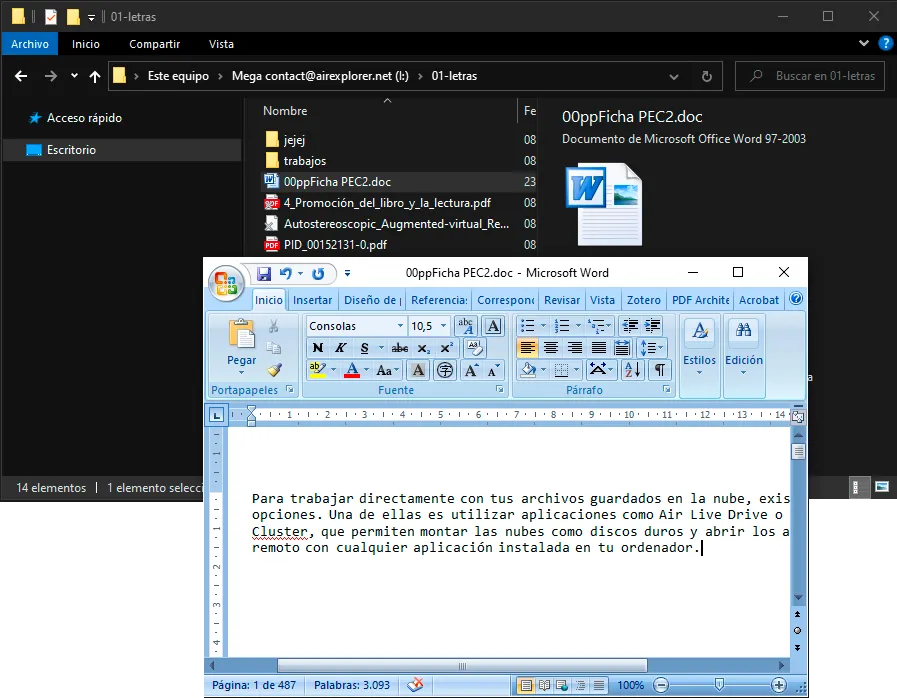
There is a fundamentally different way to work with cloud storage: mounting it as a virtual local drive. Instead of syncing files to your disk, you connect to your cloud the same way you’d plug in a USB drive, it appears as a new drive letter in File Explorer (e.g., Z: or X:), you can browse, open, and edit files directly, and nothing is downloaded until you actually open a file.
This means your 1 TB of Google Drive storage appears as 1 TB of usable local space, without occupying a single byte on your hard drive until needed.
How Air Live Drive Makes It Effortless
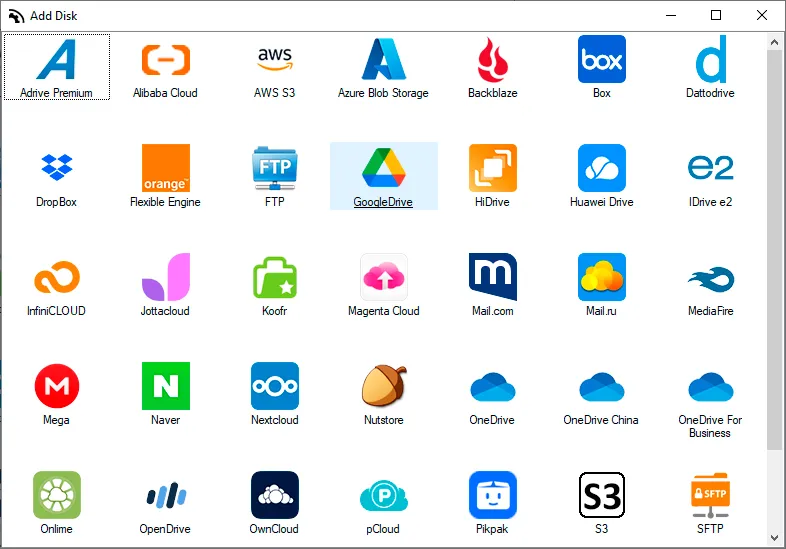
Air Live Drive is a Windows desktop app built precisely for this. It lets you mount any major cloud service (Google Drive, OneDrive, Dropbox, Box, Mega, and even protocols like FTP, SFTP, and WebDAV) as a real local disk on your computer.
Here’s how to set it up in under 3 minutes:
- Download and install Air Live Drive from the official website (airlivedrive.com).
- Add your cloud account, select your provider from the list and log in securely with your credentials.
- Assign a drive letter, choose any available letter (e.g.,
Z:) to identify your cloud storage. - Click Connect, your cloud instantly appears in File Explorer, ready to use like any other disk.
That’s it. From this moment, you can drag and drop files into your cloud, open documents directly in Word or Excel, edit photos in Photoshop, and save back to the cloud, all without a single file being permanently stored on your local drive.
Real-World Benefits You’ll Notice Immediately
- Instant storage expansion: Add the full capacity of your cloud accounts to your PC without any hardware purchase.
- No wasted local space: Files only occupy local disk temporarily when you open them, and are released when closed.
- Full software compatibility: Professional tools like Photoshop, Premiere, AutoCAD, or Excel work directly with cloud-mounted files via the native File > Open and File > Save dialogs.
- Multiple clouds, one place: Connect several accounts, even multiple Google Drive accounts, each appearing as its own drive letter.
- Access from anywhere: Your cloud drive is always available as long as you have an internet connection.
Who Benefits Most?
This solution is especially powerful for:
- Creatives and designers who work with large project files and can’t afford to sync everything locally.
- Remote workers and freelancers who collaborate on shared cloud folders and need real-time access.
- Students and home users with budget laptops and small SSDs who need to stretch their storage.
- IT professionals who manage cloud shares across teams without wanting full sync on every machine.
Conclusion
Running out of disk space no longer means reaching for your wallet to buy new hardware. By mounting your cloud storage as a local drive with Air Live Drive, you turn your existing Google Drive, OneDrive, or Dropbox plan into a seamless extension of your computer’s storage — instantly accessible, always up to date, and completely transparent to any application you use.
Download Air Live Drive and add your first cloud drive in minutes
You can check more information about more features here:
-The Fastest Way to Integrate Google Drive, OneDrive, and Dropbox into File Explorer
-How to Mount Cloud Storage as a Local Drive in Windows
-What is the Best Software to Map SFTP and WebDAV Servers as Hard Drives?