
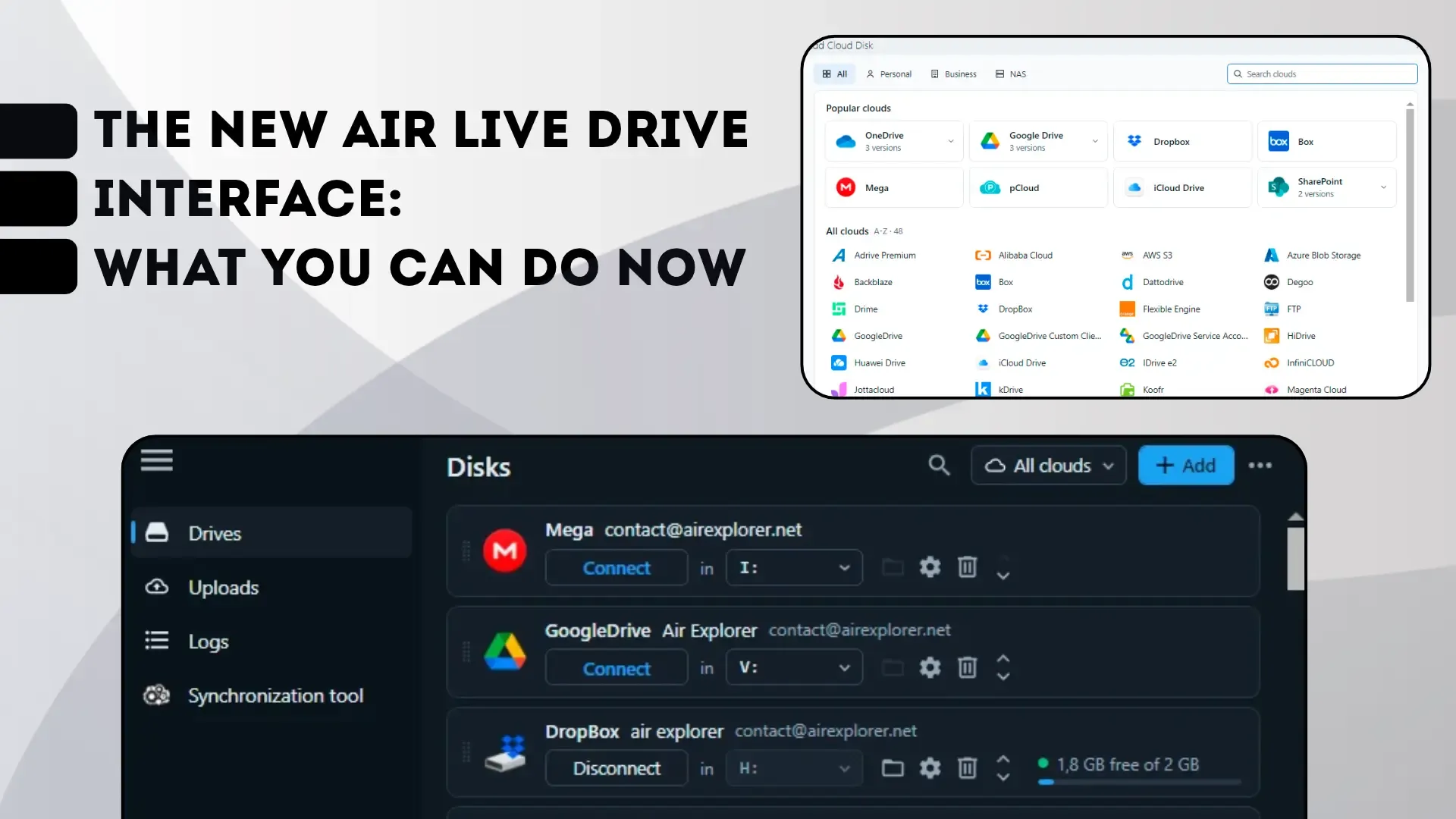
Since version 3.0.0, Air Live Drive for Windows has a redesigned interface. Your disks and their settings are kept when you update. What changes is how easy some things are to do, and there are new features. Here they are.
Find and organize your disks
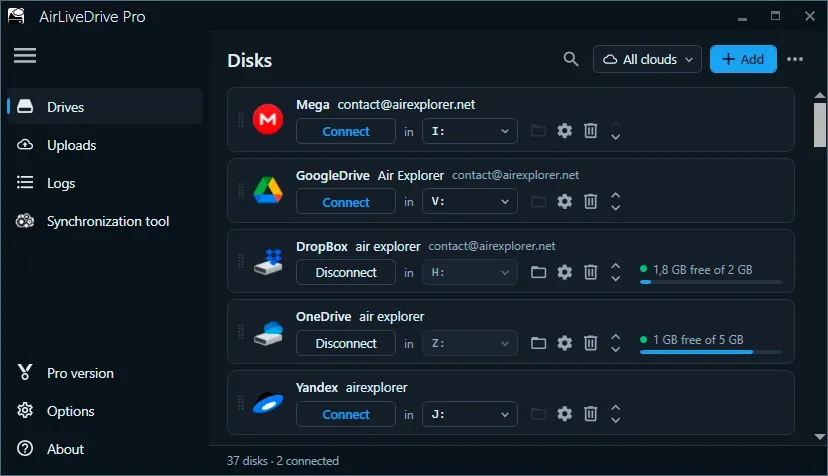
If you have many accounts, you no longer need to scroll through the list:
- Filter accounts finds a disk by its name as you type.
- All clouds shows only the disks of one service, for example all your Google Drive accounts.
- Order your disks as you like by dragging them, or with the move up and move down arrows.
- Check the free space of each connected account in its bar, without opening the cloud’s website.
Each disk has what you use most at hand: connect it, open it in File Explorer and open its configuration. Removing a disk from the list does not delete anything from your cloud.
Add a cloud in seconds
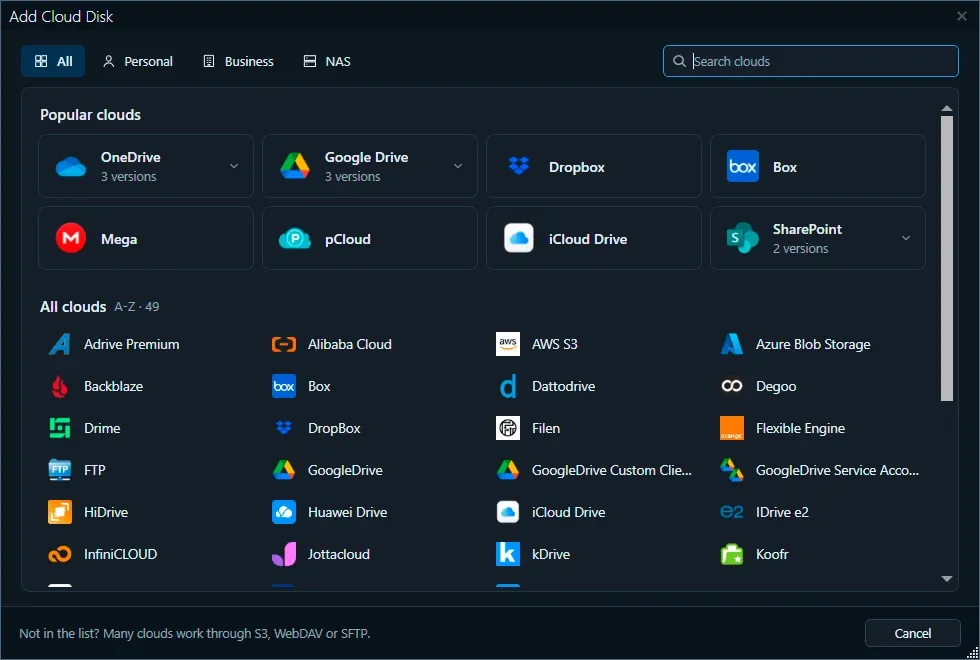
Add Cloud Disk opens a catalog with the more than 40 supported clouds:
- Search clouds: type part of the name and it is there.
- Filter by type to see only Personal, Business or NAS clouds.
- Choose the right version from the popular clouds. OneDrive, for example, has three: the personal account, Microsoft 365 and China. Google Drive can use your own client ID or a service account.
- If your provider is not listed, you can connect it through S3, WebDAV or SFTP, which many clouds support.
Pick a drive letter without conflicts
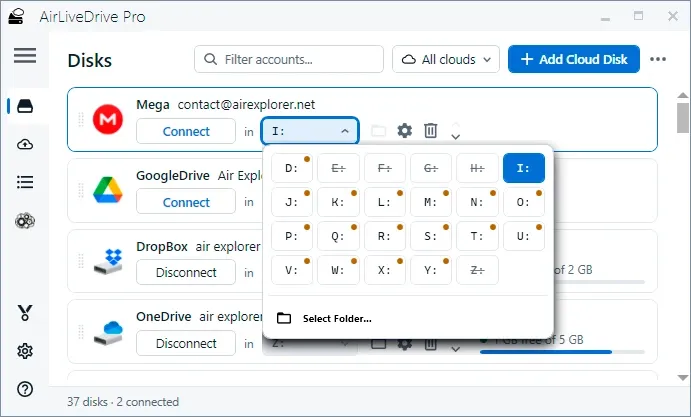
When you choose the letter, you see at a glance which ones you can use, so you avoid mounting a disk on a letter that is taken:
- Crossed out: Windows or another connected disk is using it. Hold the mouse over it to see which.
- With a dot: it is also assigned to another of your disks. You can use it, but only one of the two can be connected at a time.
- Select Folder: mounts the disk in a folder instead of a letter, with no limit on the number of disks.
Take your disks to another computer
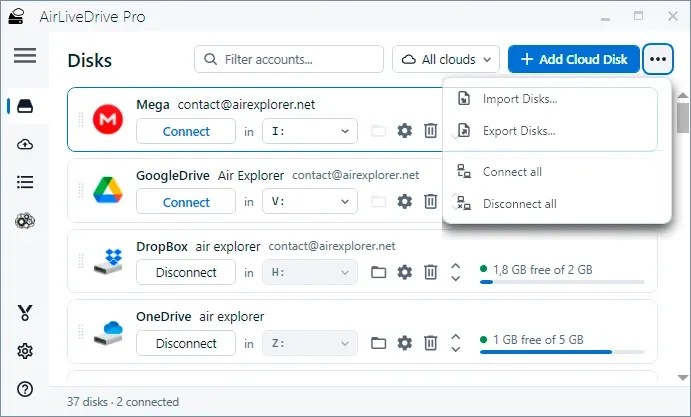
The ”…” menu holds what applies to all your disks:
- Export Disks saves your disks to a file, and Import Disks loads them on another computer without setting them up again. See how to export and import your accounts.
- Connect all and Disconnect all do it in one click, for example when you start or finish your day.
Decide when and how changes are uploaded
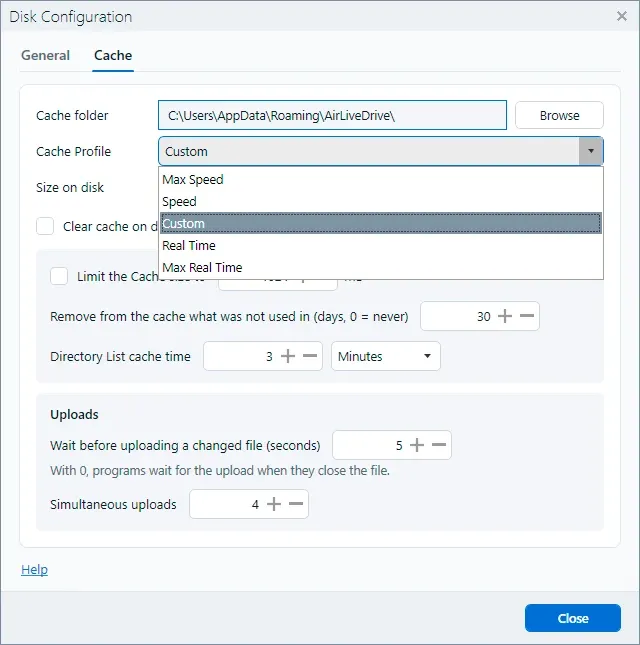
This is the most useful new feature if you work with large files or save often. In each disk’s configuration, Cache tab, Uploads section:
- Wait before uploading a changed file: if you save several times in a row, the file is uploaded once when you finish, instead of on every save. It waits 5 seconds by default. With 0, the program you are working with waits for the upload to finish when it closes the file, so you know it is already in the cloud.
- Simultaneous uploads: how many files are uploaded at the same time, from 1 to 16. Raise it if you copy many small files and have a good connection; lower it if uploads leave you without bandwidth.
In the same tab you control the local copy of your files: you see how much space the cache of that disk uses, and you can limit its size and remove what you have not used for a number of days. To choose the cache profile, see the cache management guide.
Follow your uploads
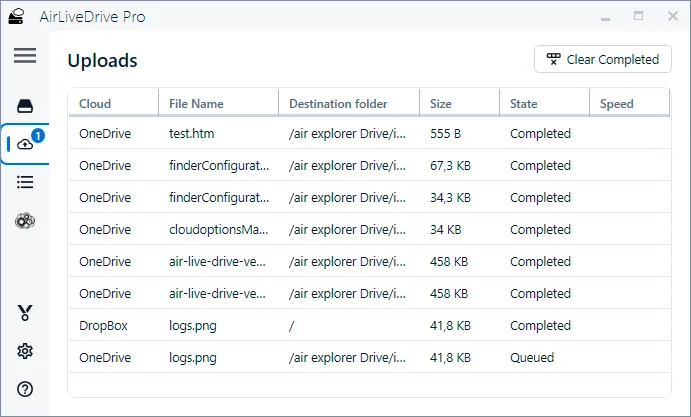
Uploads, in the side menu, shows each file with its cloud, destination folder, size and whether it is queued, uploading or completed. The number on the icon tells you how many are still pending, and Clear Completed removes the finished ones from the list.
A failed upload is no longer lost: Air Live Drive tries it again by itself, and you can also retry it, save the file as a copy or discard it. Pending changes are kept even if you disconnect the disk or close the program.
Frequently asked questions
Do I have to set up my disks again after updating? No. Your disks, their letters and their settings are kept when you update to version 3.0.0.
Does the Mac version have the same interface? No. This article is about Air Live Drive for Windows. On macOS, Air Live Drive has its own app and your disks appear in Finder.