
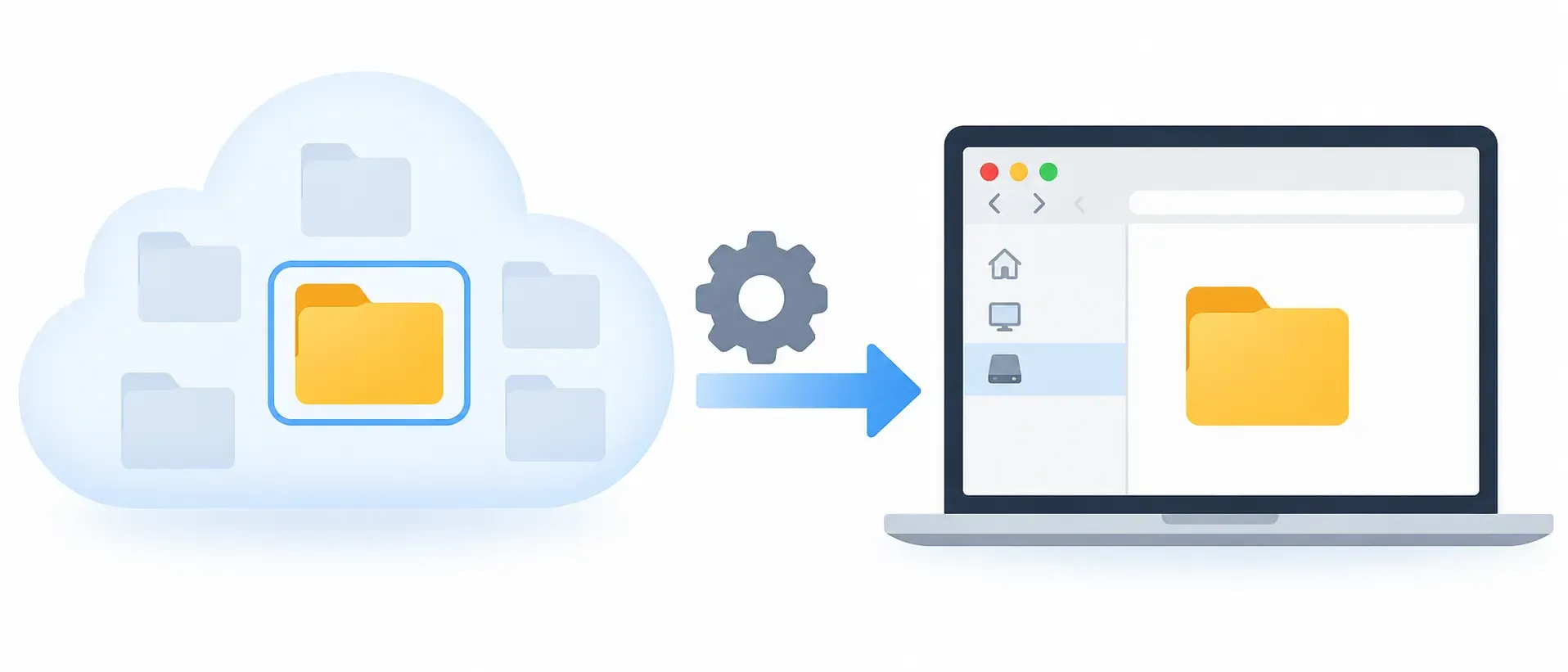
To mount a single cloud folder as a drive, open the disk settings in Air Live Drive, choose the folder under Mount a subfolder or a shared drive as the root folder and connect the disk. That folder becomes the root of the drive: Windows shows it as its own drive letter, without the rest of the account. It works with Google Drive, OneDrive, SharePoint, Dropbox and the other supported clouds, on Windows and Mac.
This is not the same as mounting the drive in a local folder, such as C:\Clouds\, instead of a drive letter: for that, see how to mount cloud drives as folders.
In short
- What you need: Air Live Drive, free for up to three drives, and a cloud account already added.
- Where it is: gear icon of the disk → Disk Configuration → General.
- How long: about a minute. The disk has to be disconnected while you change it.
- Free or Pro: the option is in both. To mount several folders of the same account as separate drives you need Pro.
Why mount only one folder instead of the whole cloud?
When you mount a cloud account as a drive, you get everything in it: personal files, old projects, shared folders, shared drives. Often you only work in one place. Mounting a subfolder as the drive root keeps the drive clean and short:
- One drive per client or project.
P:opens straight into Projects/Client A, not three levels up. - Shorter paths. Programs that save their paths, such as Photoshop, Premiere, AutoCAD or Excel links, store
P:\Logo.psdinstead of a long path inside the account. Some Windows applications still fail with paths longer than 260 characters, and a shorter root helps. - A tidier view for others. On a shared computer, the drive only shows the folder people need.
- Faster browsing. Air Live Drive lists only that branch of the cloud, not the whole account.
- Give an AI tool or a script just one folder. Claude, ChatGPT or a backup script see the folder you choose and nothing else on that drive. More in how to use Claude with Google Drive, Dropbox, OneDrive and MEGA folders.
How to mount a cloud folder as a drive, step by step
- Download Air Live Drive, install it and add your cloud with Add Cloud Disk. If you have not done it before, this guide explains how to mount cloud storage as a local drive.
- If the disk is connected, click Disconnect. The folder cannot be changed while the drive is in use. Wait until any background uploads have finished first.
- Click the gear icon next to the disk to open its settings.
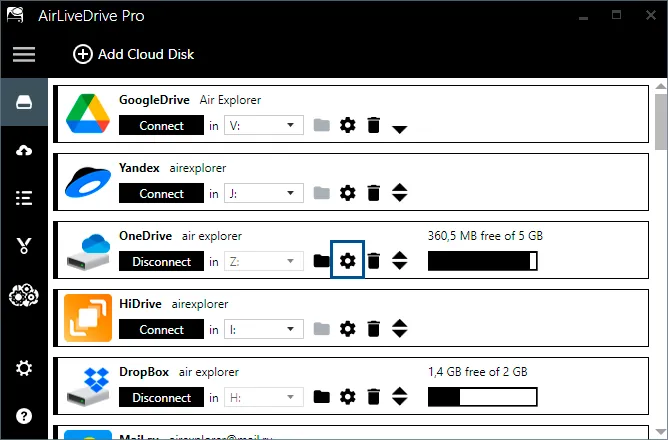
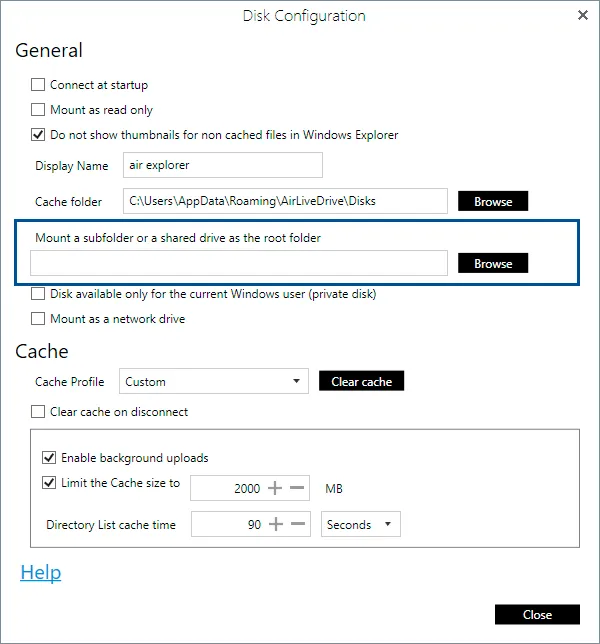
- In Disk Configuration, under General, find Mount a subfolder or a shared drive as the root folder and click Browse.
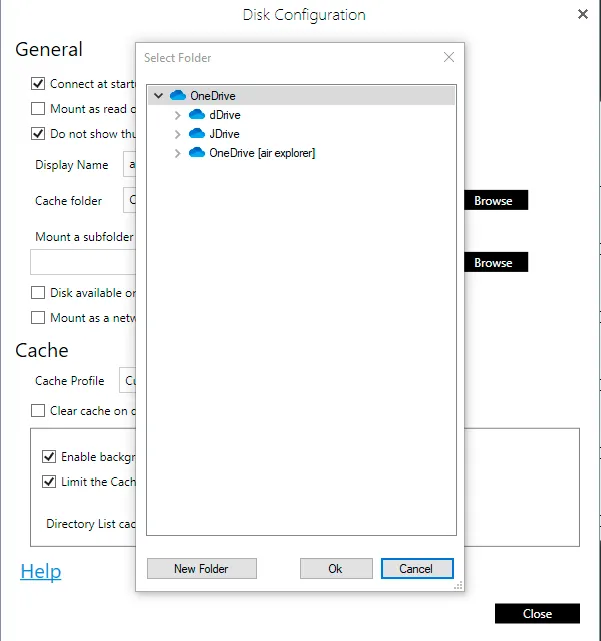
- In Select Folder, open the account tree, pick the folder and click Ok. You can also create a new one with New Folder.
- Click Close, choose the drive letter and click Connect.
Open This PC: the new drive opens directly in that folder. Everything above it in the account is not visible from the drive.
To go back to the whole account, disconnect the disk, empty the field and connect it again.
Mount a shared drive or a SharePoint library
The same option lets you mount only one shared drive. In the Select Folder tree, the account shows its roots: your own drive and, below it, each Google shared drive, OneDrive shared folder or SharePoint document library you have access to. Choose one of them instead of a folder.
This replaces the old option to show or hide all shared drives: since version 2.0, Air Live Drive mounts all of them by default, and this field is how you mount only one. See also how to mount just your disk or another shared drive.
Several folders of the same account, each with its own drive letter
To have two folders of the same cloud account as two drives, for example P: for Projects and I: for Invoices, add the account twice with Add Cloud Disk and set a different folder in each disk.
The free version allows one disk per cloud service, so the second disk of the same Google Drive or OneDrive needs Air Live Drive Pro. Each disk keeps its own cache and its own settings, so you can make one of them read-only and leave the other writable.
On a Mac
The option is also in Air Live Drive for Mac, in the disk settings, with the same name: Mount a subfolder or a shared drive as the root folder. Click Browse… and choose the folder; leave the field empty to mount the whole account. The location in Finder then opens directly in that folder. The Mac version needs macOS 13 or later. More in Air Live Drive for Mac: cloud storage in Finder.
Can I do this without Air Live Drive?
Partly, and it depends on the cloud:
| Air Live Drive | Google Drive for desktop + subst | Windows “Map network drive” | |
|---|---|---|---|
| Clouds | 40+ (Google Drive, OneDrive, SharePoint, Dropbox, MEGA, S3, SFTP, WebDAV…) | Google Drive only | WebDAV servers only |
| One folder as the drive root | Yes, built in | Yes, with subst X: "G:\My Drive\Folder" | Yes, if the server gives a folder address |
| Survives a restart | Yes | No: subst has to be run again, for example from a startup script | Yes |
| Rest of the account on the PC | No | Yes: the whole My Drive stays on G: | No |
Google Drive for desktop always mounts the whole My Drive as G:. Windows’ subst command can give a folder inside it its own letter, but the mapping is lost at every restart, and the whole account is still there on G:. Map network drive only works with WebDAV addresses, and Microsoft deprecated its WebDAV service (WebClient) in Windows 11 23H2. More in how to connect a WebDAV server as a Windows drive.
Things to know
- Changing the folder clears the local cache of that disk. Files you made available offline will download again when you open them.
- If the folder is renamed, moved or deleted in the cloud, Air Live Drive cannot find it and mounts the whole account again. Set the folder again after renaming it.
- It is a view, not a permission. The drive only shows that folder, but the account behind it still has access to everything. To stop people from deleting files, also tick Mount as read only. To keep it away from other Windows users, tick Disk available only for the current Windows user (private disk).
- Prefer a folder path to a letter? You can also mount the drive as a folder, such as
C:\Clients\, and combine both options.
FAQ
Can I map a specific Google Drive folder to a drive letter?
Yes. Add your Google Drive to Air Live Drive, open the disk settings, choose the folder under Mount a subfolder or a shared drive as the root folder and connect. The drive letter opens directly in that folder. Google Drive for desktop cannot do it by itself: it always mounts the whole My Drive.
Can I map a OneDrive or SharePoint folder as a network drive?
Yes. Choose the folder or the SharePoint library in the same option and, if you need it to appear under Network locations, also tick Mount as a network drive. More in how to mount a cloud disk as a network drive.
Is it free?
Yes. The option is in the free version, which mounts up to three drives, one per cloud service. Mounting two folders of the same service as two drives needs Air Live Drive Pro.
Why is the Browse button not doing anything?
The disk is connected. Air Live Drive shows "To change this option you have to disconnect the disk first". Click Disconnect, change the folder and connect again.
Does it download the folder to my PC?
No. Nothing is synced. Files are downloaded to the local cache only when you open them, and you choose how big that cache can grow.
You can check more information here:
-How to Mount Cloud Storage as a Local Drive in Windows
-Mount Google Drive as a Windows drive, step by step
-Mount OneDrive and SharePoint as Windows disks