
Can Claude work with a folder in Google Drive, Dropbox, OneDrive or MEGA without syncing the whole account to your PC? Yes: mount the cloud account as a Windows drive with Air Live Drive, then add the folder you need to a session in Claude Desktop. Claude sees a folder path; Air Live Drive handles access to the cloud files behind it.
The screenshots use a MEGA drive named Mega (F:); the steps are the same for Google Drive, Dropbox and OneDrive. They show Claude’s Cowork interface, whose labels may change with updates.
Before you start: make the cloud folder visible in Windows
Install the current Windows versions of Air Live Drive and Claude Desktop. Claude’s local folder workflow requires the desktop app and a plan with access to Cowork. If your Claude interface no longer has a separate Cowork button, look for its current option to add a local folder to a task. Anthropic notes that this interface is changing for some users.
In Air Live Drive, choose Add cloud disk, select your provider, and authorize the account. Assign an available drive letter and click Connect. In File Explorer, check that the drive appears under This PC and that you can open the folder you need.
Air Live Drive makes the account appear as a drive without creating a complete synchronized copy on your computer. Files are fetched when they are accessed, and a local cache may hold files that have been opened. Keep Air Live Drive connected and your internet connection available during the task.
Step 1: add a folder in Claude
Open Claude Desktop and start a task in Cowork. In the interface shown here, click Project or folder beneath the message box, then select Add folder.
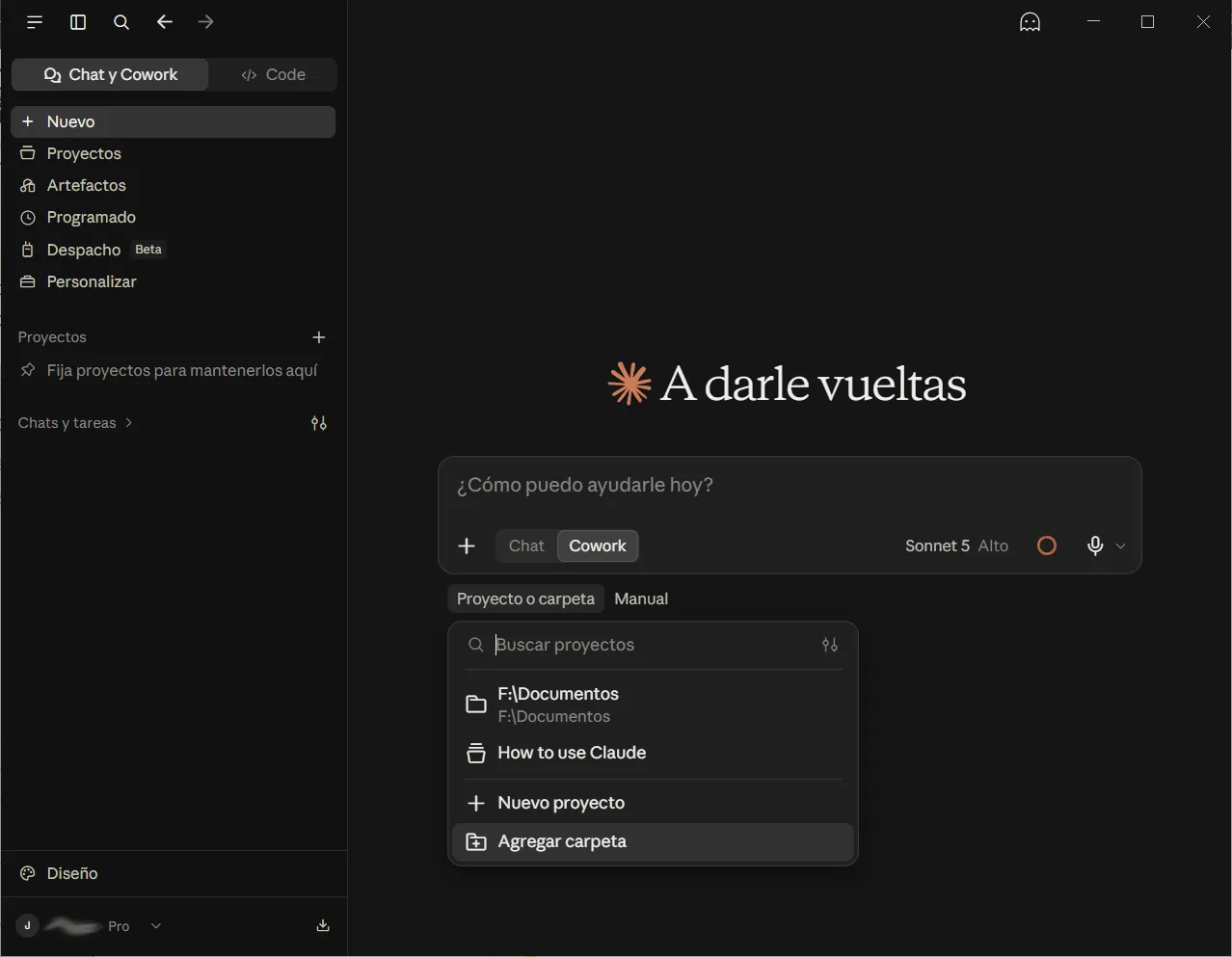
Screenshot 1: Choose “Add folder” from Claude’s “Project or folder” menu. The menu can also show folders used in earlier tasks.
This opens the Windows folder picker. Choose only the area needed for the task: for example, Reports inside OneDrive instead of the account’s root. This limits the files Claude can work with.
Step 2: select the cloud drive and working folder
In the folder picker, open This PC and find the cloud drive created by Air Live Drive. In the example, Windows shows Mega (F:) alongside the PC’s other drives. Double-click the cloud drive, navigate to the desired subfolder, and click Select Folder. If you genuinely need the whole drive, you can select its root, but a task-specific folder is usually clearer.
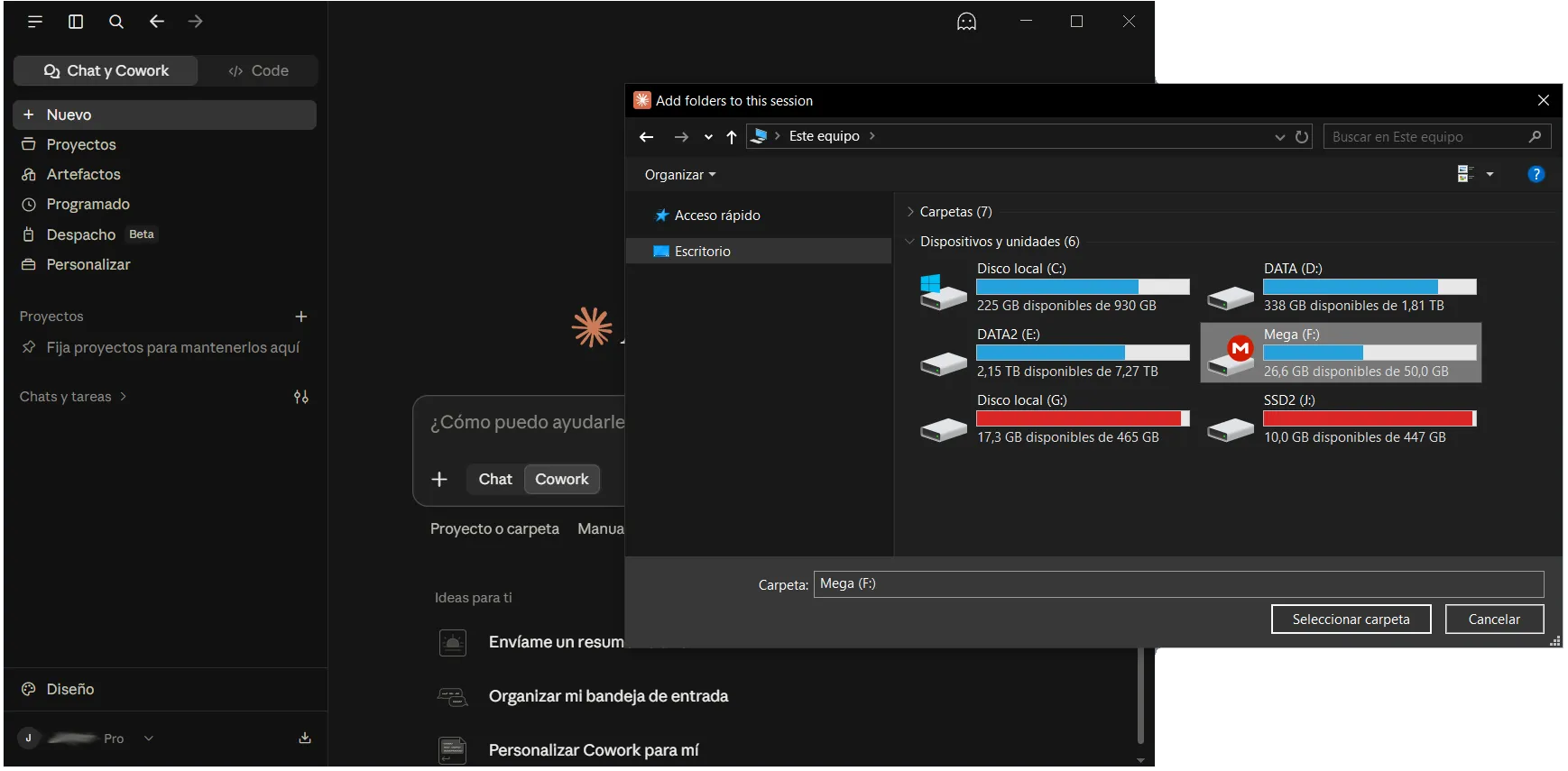
Screenshot 2: The mounted MEGA account appears as Mega (F:) in Claude’s Windows folder picker. A Google Drive, Dropbox or OneDrive account mounted with Air Live Drive would appear in the same list under its assigned letter.
Check that the folder is attached to your task. Then give Claude a specific instruction: “Read the files in this folder and summarize the three newest reports. Do not edit anything.”
Start with a read-only request to confirm that Claude can list and open the expected files. If you ask it to create or edit a file, inspect the result in File Explorer and then in the cloud provider’s web interface. Allow time for any pending upload to finish before closing Air Live Drive or shutting down the PC.
Why use a mounted folder instead of syncing everything?
The key benefit is folder access without a full local mirror. A cloud account can contain years of documents, images and archived projects, while a Claude task may need only one working folder. Air Live Drive exposes the files through a normal Windows path, and Claude can use the folder you explicitly select. This is useful when preparing a summary from Dropbox documents, organizing files in OneDrive, reviewing text stored in Google Drive or drafting material in MEGA.
If you use several accounts, mount each with its own drive letter and select the relevant folder for each task. Claude needs no separate Air Live Drive plugin or full folder upload to a chat.

There are practical limits. Reading many large files can take longer than reading local copies, because the files must be transferred as needed. Some file types may require conversion or a suitable app before Claude can interpret their contents. Avoid asking Claude to make broad changes in a shared folder without reviewing its plan, and keep a backup or version history for important material. Anthropic recommends limiting folder access to what a task needs.
A cloud folder becomes a Claude working folder
The process is simple: connect the cloud account in Air Live Drive, confirm the new drive appears in Windows, then choose a folder from that drive in Claude Desktop. The two screenshots show the decisive moments: Add folder in Claude and Mega (F:) in the Windows picker. Swap MEGA for Google Drive, Dropbox or OneDrive, and you have the same practical route from cloud storage to a Claude working folder, without syncing the entire account to your PC.
For a broader overview of Claude and mounted drives, see our earlier article on Claude Cowork, Claude Code and Air Live Drive.