
Mount Google Drive as a Windows drive – Step by step guide
October 20, 2025
Accessing cloud storage should be as seamless as working with files on your local computer. Whether you’re managing documents, media, or collaborative projects, mounting Google Drive as a Windows drive can dramatically improve your workflow. Instead of relying on browser-based access or syncing files manually, you can interact with your cloud storage directly from File Explorer, just like any other drive.
That’s exactly what Air Live Drive makes possible. This tool allows you to mount Google Drive and other cloud services as virtual drives on your Windows system, giving you native access to your files without local downloads or syncs.
Why mount Google Drive as a Windows drive?
Mounting Google Drive as a local drive offers several practical advantages:
- Direct access from file explorer: No need to open a browser or navigate through web interfaces.
- No syncing required: Save disk space and avoid duplicate files.
- Work with cloud files as if they were local: Open, edit, and save documents directly from your favorite apps.
Use cases
- Real-time document editing: Open Google Drive files in Word, Excel, or Photoshop without downloading.
- Team collaboration: Share access to cloud folders and streamline workflows across departments.
Google Drive for desktop or Air Live Drive?
Google Drive for desktop is Google’s official app, it is free and it works well if Google Drive is the only cloud you use. Air Live Drive is a better fit when you also work with other services, or when you want each account, shared drive or folder as its own drive letter.
| Google Drive for desktop | Air Live Drive | |
|---|---|---|
| Cloud services | Google Drive only | Google Drive and 40+ more (OneDrive, Dropbox, MEGA, S3…) in the same app |
| A shared drive or a single folder as its own drive | No | Yes |
| Windows and Mac | Yes | Yes |
| Price | Free | Free for up to 3 drives; Pro removes the limits |
What is Air Live Drive?
Air Live Drive is a desktop application designed to mount cloud storage services as virtual drives in Windows. It’s ideal for users who want fast, direct access to their cloud files without syncing them locally.
Key Benefits
- No local sync: Files remain in the cloud, saving disk space.
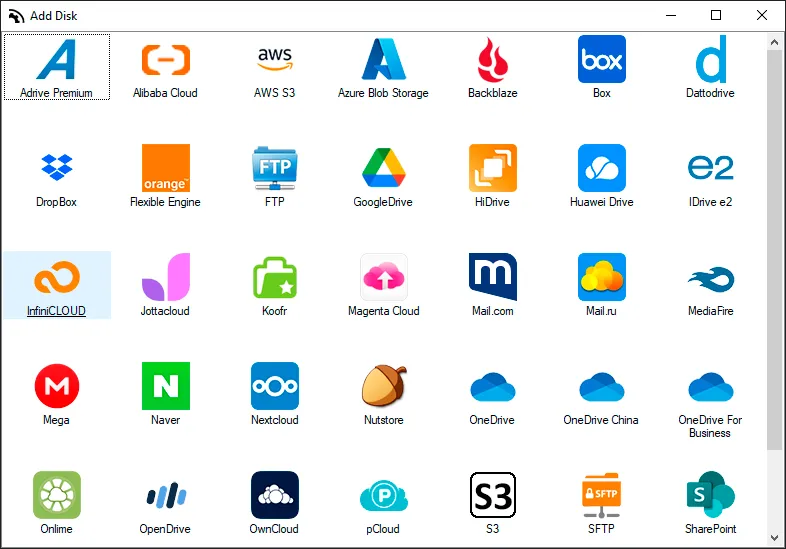
- Multi-cloud compatibility: Supports Google Drive, Dropbox, OneDrive, Mega, Box, and more.
- Platform support: Windows 7, 8, 10 and 11, and macOS 13 or later.
Whether you’re a freelancer managing multiple accounts or an IT professional handling remote storage, Air Live Drive offers a flexible and secure solution.
Step-by-Step: How to mount Google Drive with Air Live Drive
Here’s how to get started:
- Download and install Air Live Drive
Visit the official website and download the installer for Windows. Follow the setup instructions. - Launch the app and go to the “Add Cloud Disk” section
Open Air Live Drive and click on “Add Cloud Disk” to begin connecting your cloud account. - Select Google Drive
Choose Google Drive from the list of supported services. Authenticate using your Google account. - Assign a drive letter and configure options
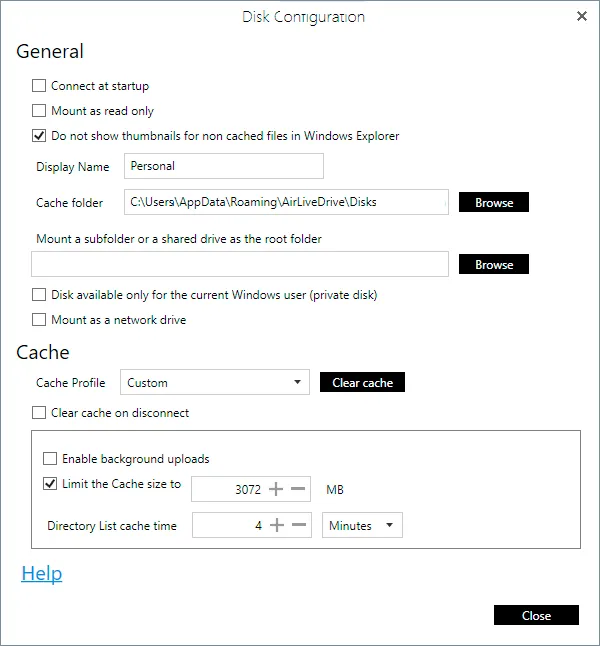
Pick a drive letter (e.g., G:) and set preferences like read/write mode, auto-mount on startup, or read-only access. - Click “Connect”
Once connected, Google Drive will appear in File Explorer as a new drive. You can now browse, open, and manage files directly.
Google Drive options worth knowing:
- A shared drive or a folder as the root: instead of your whole My Drive, mount a single shared drive or folder as its own drive letter.
- Your own OAuth client ID: if your organization requires it, you can set up a custom Google OAuth client ID. You always sign in on Google’s own page; Air Live Drive never asks for your Google password.
- On a Mac: the steps are the same, and Google Drive appears in Finder (macOS 13 or later).
Working with Google Drive in Air Live Drive
Once mounted, Google Drive behaves like any other local drive:
- Open, edit, and save files directly from File Explorer.
- Drag-and-drop support for easy file movement.
- Compatible with most Windows apps, including Microsoft Office, Adobe Suite, and media players.
Performance Tips
- Use read-only mode when you only need to consult files, so nothing is changed or deleted by accident.
- Enable auto-mount to connect automatically at startup.
- Monitor connection status and activity from the Air Live Drive dashboard.
Advanced settings and features
Air Live Drive also includes advanced options for power users:
- Cache management: Control how temporary files are stored for faster access.
- Multiple account support: Mount several Google Drive accounts simultaneously (Pro; the free version allows one account per cloud service).
- File access permissions: Customize read/write access for different drives.
These features make Air Live Drive a versatile tool for both casual users and professionals managing complex cloud setups.
Conclusion
Mounting Google Drive as a Windows drive with Air Live Drive transforms how you interact with cloud storage. It eliminates the need for syncing, speeds up access, and integrates cloud files into your everyday desktop experience.
Whether you’re editing documents, managing media, or collaborating with a team, Air Live Drive offers a smooth, efficient way to work directly from the cloud. Try it out and simplify your digital workflow, one drive letter at a time.
You can check more information about more features here:
-How to Mount Cloud Storage as a Local Drive in Windows
-Cloud mapping made simple
-No more downloads: Edit cloud files directly
-Top 4 cloud storage mistakes and how to solve them