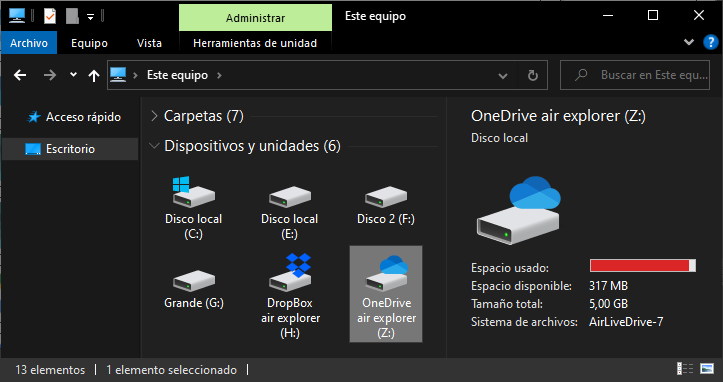
If you want to access cloud files without downloading or syncing them to your hard drive, the best method is to mount your cloud storage as a local disk drive. Using a tool like Air Live Drive, you can connect platforms like Google Drive, OneDrive, or Dropbox directly to Windows. These clouds will appear exactly like a USB flash drive in your File Explorer, letting you open, edit, and save files directly in the cloud without taking up local storage space.
Problems with Traditional Syncing
Most official cloud storage desktop clients rely on synchronization to function. When you install them, they create a dedicated folder on your computer and download local copies of your files. While this is convenient for working offline, it quickly drains your computer’s local storage capacity. If you have a laptop with a 256GB hard drive and a 1TB cloud account, syncing everything is mathematically impossible.
Even modern features like smart syncing can be frustrating, as they often cache large files invisibly and still consume valuable gigabytes over time. Furthermore, for users juggling multiple cloud accounts for personal and work use, running several desktop clients simultaneously hogs RAM and slows down your overall system performance.
Mounting Clouds as Local Drives
Instead of downloading files, you can mount your cloud accounts directly into the Windows operating system. This approach bypasses the need to sync files just to see or organize them. You interact with the cloud exactly as you would with a physical piece of hardware plugged into your computer.
Air Live Drive is a Windows desktop application designed specifically for this purpose. It bridges the gap between your PC and your cloud storage providers. When you mount a cloud with Air Live Drive, it receives a standard drive letter, such as D: or E:, integrating seamlessly into your daily workflow.

Key Benefits of Air Live Drive
Switching from traditional syncing to a direct-mount approach offers several major advantages for your daily productivity:
- Zero local space consumed: Files remain strictly in the cloud until you double-click to open them, ensuring your hard drive stays clean.
- Native software compatibility: You can open and edit your cloud files using Word, Photoshop, Premiere, or any other desktop software directly.
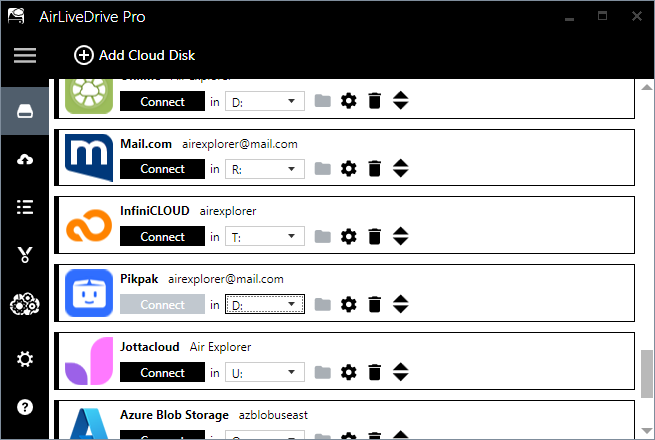
- Centralized account management: Connect several accounts from the same provider, such as multiple Google Drives, or mix providers like Mega, Dropbox, and Box in one place.
- Enhanced system performance: You only need to run one lightweight application in the background instead of a half-dozen different cloud sync clients.
Set Up Air Live Drive
Getting started is incredibly simple and requires no advanced technical knowledge.
- Download and install Air Live Drive from the official website.
- Open the application and click on “Add Cloud” to log into and authorize your preferred storage providers.
- Assign a drive letter to each connected cloud.
- Click “Connect” to instantly mount them in your Windows File Explorer.
Real-World Use Cases
For architects and designers, mounting clouds is a massive game-changer. Imagine working with an extensive library of heavy AutoCAD or Illustrator projects stored on OneDrive. Instead of having to sync an entire client’s folder to your hard drive just to start working, you can browse the file structure in Windows File Explorer and open the specific blueprint or design directly in your professional software.
Similarly, remote workers dealing with dozens of daily spreadsheets can edit them in Microsoft Excel directly from a mounted Dropbox drive. When you hit save, the changes are written straight to the cloud in real-time. There are no duplicated files to clean up, no sync errors to troubleshoot, and no wasted hard drive space.
Frequently Asked Questions
- Do I need an internet connection? Yes, because the files are not stored locally, you need an active internet connection to open and edit your documents.
- Is my login data secure? Air Live Drive uses official OAuth protocols, meaning the software never sees or stores your actual passwords; you log in directly through the cloud provider’s secure portal.
- Can I move files between different clouds? Yes, because each cloud gets its own drive letter, you can easily drag and drop files from a Google Drive window to a Dropbox window right in your File Explorer.
You can check more information about more features here:
-Cache Management Guide: How to Optimize Your Local Storage
-Run Out of Disk Space? How to Use Cloud Storage as Extra Local Storage
-The Fastest Way to Integrate Google Drive, OneDrive, and Dropbox into File Explorer
